PIM Integration
Connect your Plytix account to sync product data
Where to find it: Admin → Catalog → Product Information Management → PIM Integration
When you'd use this: You manage rich product content in Plytix (descriptions, images, specifications) and want to bring that data into CommerceBuild to supplement or replace basic product information from your ERP.
What you need first:
- A Plytix account with product data
- Your Plytix API Key and API Password (found in Plytix under Settings → API)
- PRODUCT_WRITE permission in the ADMIN_CATALOG privilege group
Set it up:
- Navigate to Admin → Catalog → Product Information Management → PIM Integration
- Click Add PIM Connection (or select Plytix from the provider list if no connection exists yet)
- Enter a label for this connection (e.g. "Plytix Production")
- Enter your Plytix API Key and API Password
- Choose whether this is a sandbox or production connection
- Click Save
CommerceBuild validates your credentials when you save. If the connection fails, double-check your API Key and API Password in your Plytix account settings.
Using it day-to-day:
Once connected, you can configure which product attributes to sync and trigger product imports from Plytix. The connection credentials are stored securely and used automatically for all sync operations.
To update your connection settings:
- Return to Admin → Catalog → Product Information Management → PIM Integration
- Select your existing Plytix connection
- Update the label, credentials, or sandbox/production mode as needed
- Click Save
CommerceBuild re-validates the connection each time you update credentials.
To remove a Plytix connection:
- Navigate to Admin → Catalog → Product Information Management → PIM Integration
- Select your Plytix connection
- Click Delete (or the delete option in your connection's menu)
The connection and credentials are removed immediately. Product data and custom fields that were previously synced from Plytix remain in your catalog — deleting the connection does not delete your product information.
Troubleshooting:
-
Invalid PIM credentials error when saving — Your API Key or API Password is incorrect. Copy the credentials directly from Plytix Settings → API and ensure there are no extra spaces.
-
Unable to connect to the PIM provider — Plytix may be temporarily unavailable, or your network may be blocking the connection. Wait a few minutes and try again.
-
Connection saves without credentials — You can save a connection without entering credentials (for example, to reserve the integration slot), but you'll need to add valid credentials before you can sync product data.
Sync products from a Plytix list
Where to find it: Admin → Catalog → Product Information Management → PIM Integration
When you'd use this: You organize products into lists in Plytix and want to sync only products from a specific list, rather than your entire catalog. This applies to both static lists (manually curated) and smart lists (automatically filtered based on rules you define in Plytix).
What you need first:
- An active Plytix integration configured in Admin → Catalog → Product Information Management → PIM Integration
- A product list created in Plytix (either a static list or a smart list)
- The product list ID from Plytix (visible in the URL when viewing the list)
- PRODUCT_WRITE permission in the ADMIN_CATALOG privilege group
Set it up:
- In Plytix, navigate to the product list you want to sync
- Copy the list ID from the URL:
- For static lists:
https://pim.plytix.com/lists/products/static/{list-id} - For smart lists:
https://pim.plytix.com/lists/products/smart/{list-id}
- For static lists:
- In CommerceBuild, navigate to Admin → Catalog → Product Information Management → PIM Integration
- Select your Plytix connection
- Enter the product list ID
- Select the list type (Static or Smart)
- Click Save
CommerceBuild will use this list as the source for all product syncs. Only products included in the list will be imported.
Using it day-to-day:
Once configured, product syncs automatically pull from the specified list:
- Static lists: Products remain in the sync until you manually add or remove them in Plytix
- Smart lists: Products are automatically added or removed based on the list's filter rules, and those changes are reflected in the next sync
To change which list is synced:
- Return to Admin → Catalog → Product Information Management → PIM Integration
- Select your Plytix connection
- Update the product list ID and list type
- Click Save
The next sync will use the new list as the source.
Troubleshooting:
-
Products from the list aren't appearing after sync — Verify the list ID is correct by checking the URL in Plytix. Ensure the list type (Static or Smart) matches the actual list type in Plytix.
-
Smart list changes in Plytix aren't reflected in CommerceBuild — Smart list membership is evaluated at sync time. Trigger a manual product sync to pull the latest list membership.
Sync product attributes from your PIM to custom fields
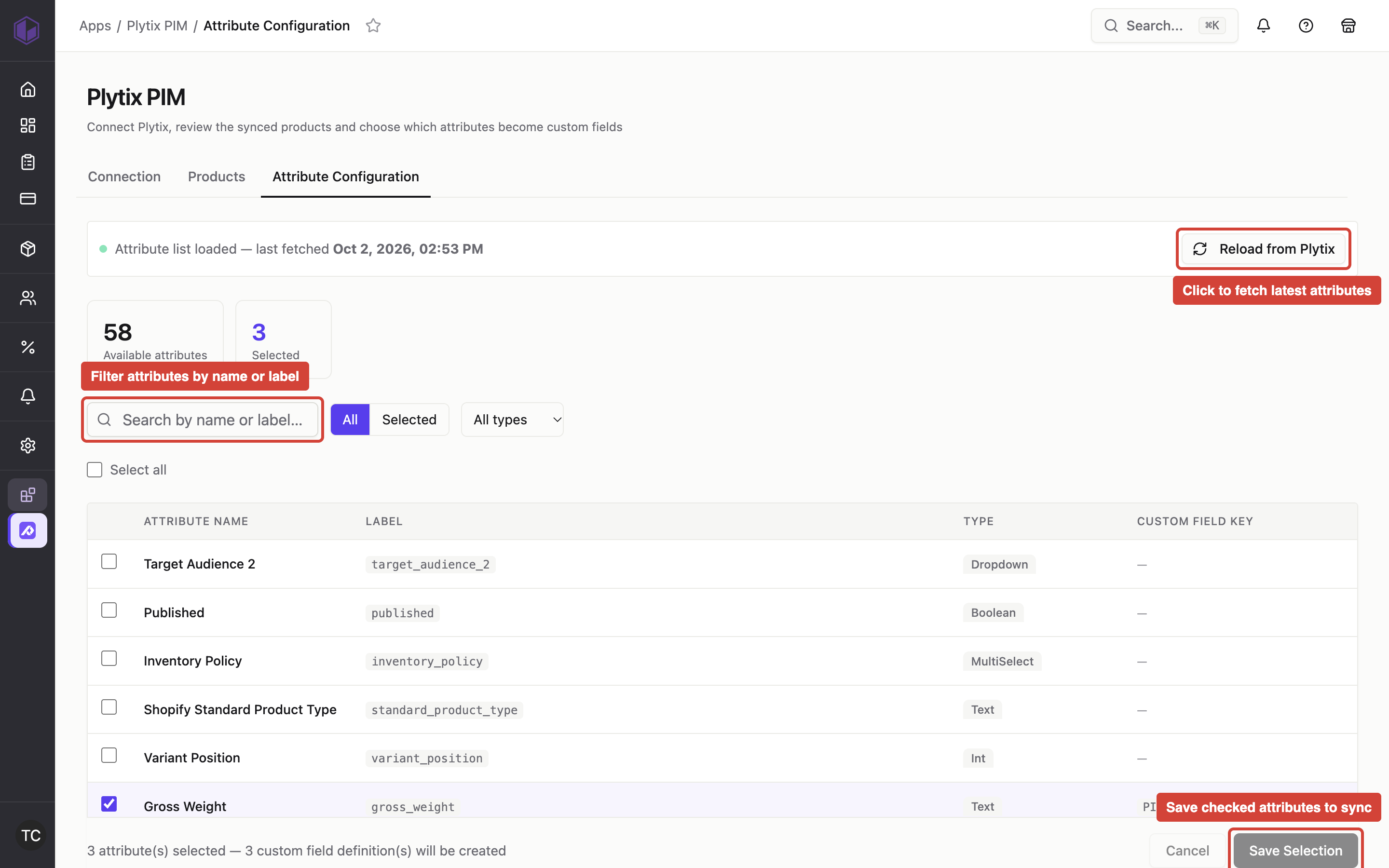
Where to find it: Admin → Catalog → PIM Integration → Attribute Configuration
When you'd use this: You store rich product data in Plytix (e.g. material, dimensions, certifications) and want to display that information on product pages without manual data entry.
What you need first:
- An active Plytix integration configured in Admin → Catalog → PIM Integration
- PRODUCT_WRITE permission in the ADMIN_CATALOG privilege group
Set it up:
- Navigate to Admin → Catalog → PIM Integration → Attribute Configuration
- Click Reload Attributes to fetch the latest attribute definitions from your Plytix environment
- Review the list of available attributes — each shows:
- The attribute name and label from Plytix
- The attribute type (e.g. TextAttribute, BooleanAttribute)
- How it will be stored in CommerceBuild (e.g. Text Box, Check Box)
- Select the checkbox next to each attribute you want to sync to your webstore
- Click Save Selection
CommerceBuild will create a product custom field for each selected attribute. These fields are marked as PIM-managed and cannot be edited manually — their values come directly from Plytix.
Using it day-to-day:
Once configured, attribute values sync automatically whenever products are synced from Plytix:
- Product sync runs (either scheduled or manually triggered)
- CommerceBuild fetches the selected attribute values for each product
- Values are stored in the corresponding custom fields
- Custom fields appear on product detail pages according to your theme template
When you add a new attribute or remove an existing one:
- Return to Admin → Catalog → PIM Integration → Attribute Configuration
- Select or deselect attributes as needed
- Click Save Selection
CommerceBuild automatically updates the product catalog index when you change your attribute selection:
- Adding attributes: The new attribute's values will sync from Plytix and appear in the product API once the sync completes.
- Removing attributes: The custom field and all stored values are deleted immediately across all products, and the product API stops returning the removed attribute without any manual reindex.
Troubleshooting:
-
Reload Attributes button returns an error — Your Plytix integration may be disconnected or have expired credentials. Check Admin → Catalog → Product Information Management → PIM Integration and verify the connection is active.
-
Custom field values are empty after sync — The attribute may not have values set in Plytix for those products, or the product sync may still be running. Check the sync status in Admin → Integrations → Sync History.
-
I don't see an attribute I need — Some attribute types are not synced: Completeness (internal Plytix scores), Media, and Media Gallery attributes. These are not supported as custom fields.
-
Attribute values appear as text instead of formatted data — CommerceBuild stores decimal numbers, dropdowns, and multi-select values as text. You may need to format these in your storefront theme template.