Product Variations
Link related product variants with custom attributes
Where to find it: Admin → Products → Custom Fields
When you'd use this: Use this when you sell products with multiple attribute variations (like door handles in different finishes and backplate styles, or furniture in different fabrics and leg finishes) and want customers to switch between variants on the product detail page.
What you need first:
- Products that belong to the same range or family
- Clear attribute categories that differentiate the variants (e.g., Finish, Backplate, Size)
Set it up:
- Create a custom field with type ItemGroup to define your product range or family (e.g., "Charleston", "Federal", "Haven")
- Create custom fields with type ItemGroupAttribute for each varying attribute:
- Name the attribute followed by its value (e.g., "Finish: Brass", "Backplate: Oval")
- Repeat for each combination (e.g., "Finish: Aluminium", "Finish: Black")
- Assign the same ItemGroup value to all products in the range
- Assign the relevant ItemGroupAttribute values to each product variant
- The system automatically groups and links products during catalog indexing
How it works:
When a customer views a product detail page, the system displays swatches grouped by attribute type. For example, viewing "Charleston - Brass - Oval" shows:
- Finish swatches: Brass (current), Aluminium, Black
- Backplate swatches: Oval (current), Rounded, Square
Each swatch links to the corresponding product variant. The current product's attributes are highlighted. The system only displays swatches for attributes with available product combinations.
When you update a product's ItemGroup or ItemGroupAttribute values, the system automatically updates the swatches for all related products in the same group during the next catalog index. This ensures all products in a group reflect the latest available variants.
Troubleshooting:
- Swatches aren't appearing for a product — Verify the product has both an ItemGroup value and at least one ItemGroupAttribute value assigned. Products with empty or null values won't be included in the grouping.
- A variant is missing from the swatches — Check that the missing variant has the same ItemGroup value as the other products in the range and that all its ItemGroupAttribute values are populated.
- Swatches aren't updating after changing a product — Changes to ItemGroup or ItemGroupAttribute values require a catalog reindex to take effect. The system automatically includes all products in the same group when indexing, so swatches stay synchronized across related products.
Create variant products with multiple variations
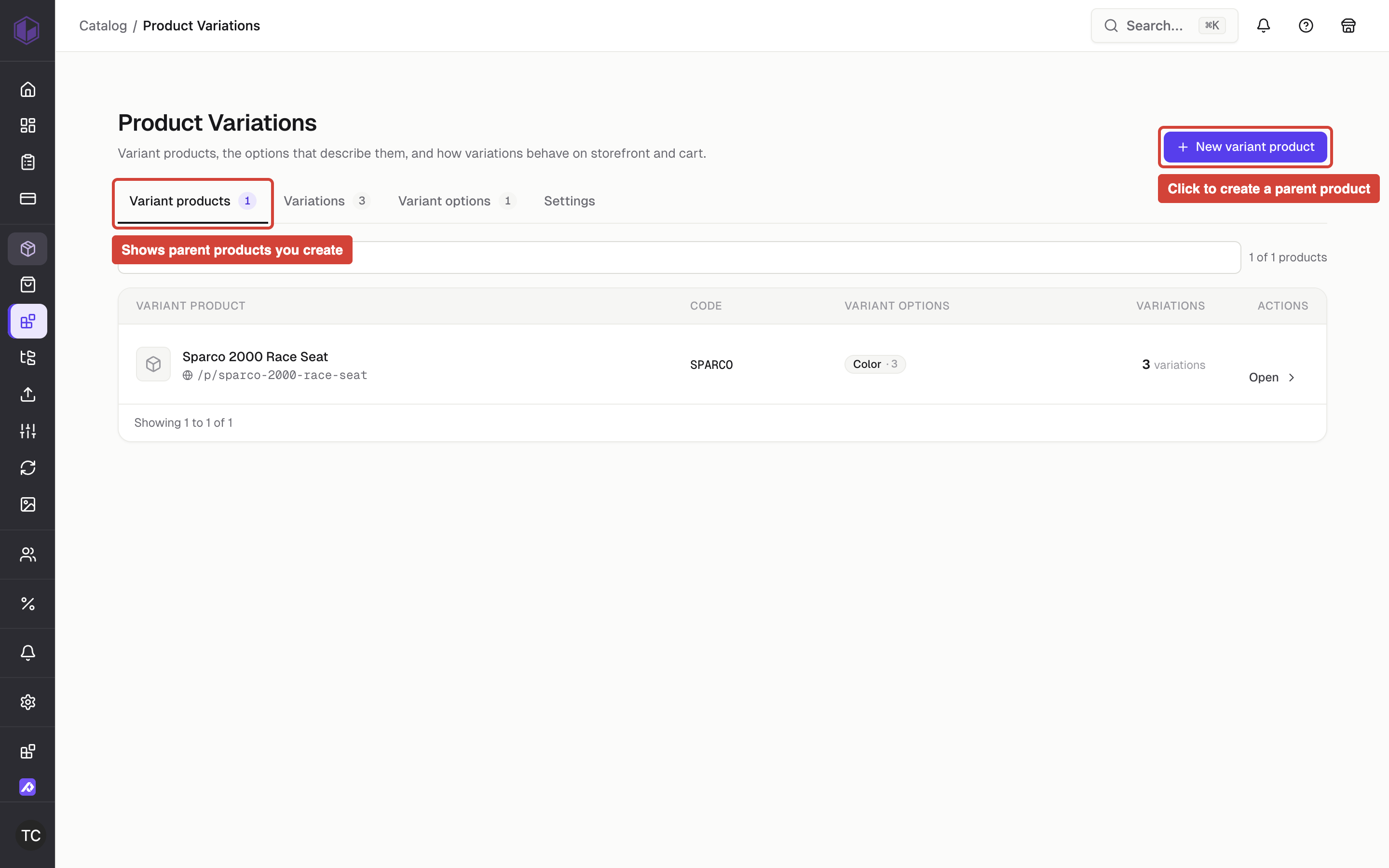
Where to find it: Admin → Products → Variant Products tab → New variant product
When you'd use this: Use this to create a parent product that groups related variations together (such as a t-shirt available in multiple sizes and colors, or a door handle available in different finishes). The parent product organizes the variations but isn't sold directly — customers purchase the individual variations.
What you need first:
- Variant options defined for your product attributes (e.g., Size: S, M, L or Finish: Brass, Chrome, Black)
- A clear product code and description for the parent product
Set it up:
- Navigate to Admin → Products → Variant Products
- Click New variant product in the page header
- Enter the parent product code and description
- Select the variant options that apply to this product family
- Save to create the parent product
- Continue to the product detail page to add categories, images, and custom fields
- Add individual variations through the drill-in view
When you create a parent product without specifying a URL slug, the system generates one automatically from the product code and description. This ensures the product detail page has a valid URL.
Using it day-to-day:
The New variant product button remains available throughout the Variant Products tab, including when you're viewing a product's variations. You can create new variant products at any time without navigating back to the main list.
When viewing a product's variations, the create sheet opens over the current view. Any draft rows or in-progress saves in the drill-in are preserved while the create sheet is open.
What displays when customers select a variation:
When a customer selects a variation on the product detail page, the page updates to show information specific to that variation:
- Description and item code — Update to show the selected variation's values when you enable "Update description & code on selection" in your store settings
- Product images — Update to show the selected variation's gallery
- Stock levels — Update to show stock for the selected variation across all warehouses
- Custom fields — Update to show any custom field values assigned to the selected variation
The system reads variation option labels and swatch images from the catalog index. When you create a new option value with both a label and a swatch image in the same request, the system automatically triggers a catalog reindex so the swatch appears on the storefront.
Troubleshooting:
- The create sheet opens behind another sheet — Close any open edit sheets first. The create sheet is designed to display on top of the product list or drill-in view, but not stacked with other sheets.
- The description and item code don't change when selecting a variation — Enable "Update description & code on selection" in your store settings. This setting controls whether the page displays the parent product's description and code or updates them for each variation.
- A swatch image doesn't appear for a newly created option value — The system automatically reindexes the catalog when you create an option value with a swatch image. If the swatch doesn't appear, verify the image path was saved correctly and check that the catalog reindex completed.
- Custom field values don't update when selecting a variation — Verify that the variation product has its own custom field values assigned. The system displays the parent product's custom fields until you assign specific values to individual variations.
Delete variant options and option values
Where to find it: Admin → Products → Variant Options
When you'd use this: Use this to remove a variant option type (such as "Finish" or "Size") or a specific option value (such as "Brass" or "Medium") that you no longer offer. Deleting an option or value automatically removes it from all products that currently use it.
What you need first:
- Admin access with catalog management privileges
How it works:
When you delete a variant option type or option value, the system:
- Unlinks the option or value from all products that reference it
- Immediately updates those parent products in the catalog index so the storefront reflects the change within seconds
- Triggers a full catalog reindex to update option labels and swatches across the entire catalog
The immediate per-product update ensures customers see accurate variation options on the storefront right away, while the full reindex ensures consistency across all catalog data.
Troubleshooting:
- A deleted option still appears on the storefront — The system sends an immediate update for each affected parent product and then performs a full catalog reindex. The immediate update typically completes within seconds. If the option persists, verify the full reindex has completed.
- You receive a permission error when attempting to delete — Verify you have catalog management privileges. Users without this privilege cannot delete variant options or values.