Emails
CommerceBuild sends automated transactional emails to customers and store administrators at key points in the shopping and order lifecycle. These emails are sent automatically when the triggering event occurs — no manual action is required.
Order confirmation emails
When you'd use this: Every customer who successfully completes an order receives an order confirmation email automatically. This provides them with a receipt and record of their purchase.
What you need first:
- The storefront V5 setting enabled for your store (contact your platform administrator)
- A valid sender email address configured in your store settings (system from email)
- Your store logo uploaded in the CMS theme settings (optional but recommended)
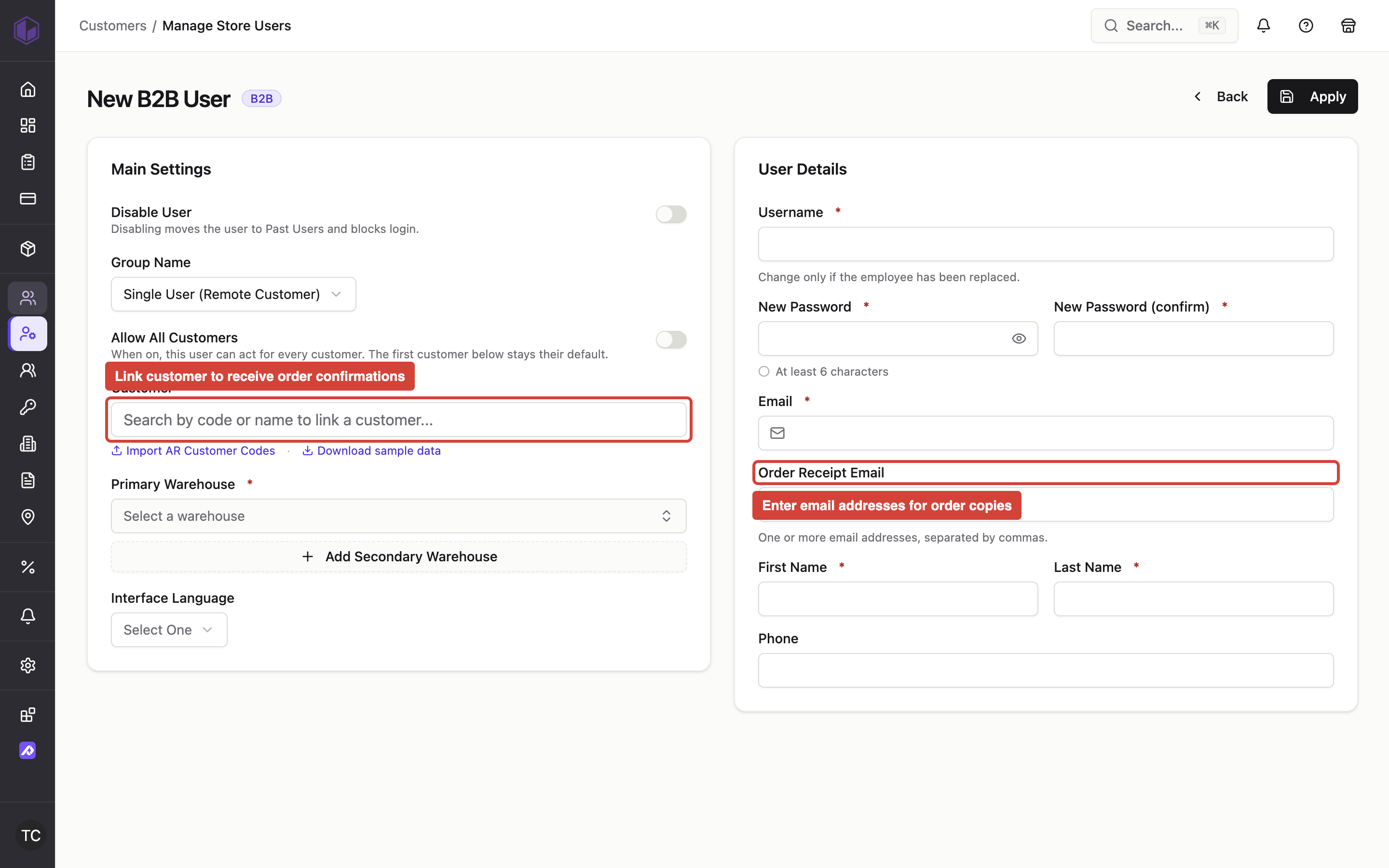
- Valid email addresses for any users who should receive copies of order confirmations
How it works:
When a customer's order is successfully placed, CommerceBuild automatically sends a branded confirmation email to the customer's email address. The email includes:
- Order number and date
- Line items ordered (with quantities and prices)
- Subtotal, tax, shipping, and total amounts
- Shipping address
- Your store logo (if configured in the CMS theme settings)
The email is sent from your store's configured system sender address and includes your company name in the footer.
If a user account has an order email address configured, that address receives a copy (CC) of each order confirmation for orders placed by that user. The order email field accepts a single email address or multiple addresses separated by commas.
Troubleshooting:
-
Customer didn't receive the confirmation email — Check that the customer's email address was entered correctly during checkout. The email is sent to the address provided at order time. Also verify your store's system from email address is configured correctly in store settings.
-
Email shows store name instead of logo — Upload your logo in the CMS theme settings under logo configuration. The email automatically pulls the current published theme's logo setting.
-
Email is not being sent at all — Verify that the storefront V5 setting is enabled for your store. Stores using the legacy storefront do not send order confirmation emails through this system. Also check that all recipient email addresses are valid — an invalid email address in the order email field will prevent the entire confirmation from being sent.
-
Order email field contains invalid data — The order email field must contain valid email addresses only. If you import or sync user data from an external system, verify that the order email field in that system contains actual email addresses, not customer codes or other identifiers. When importing users, rows with invalid email addresses in the email, contact email, or order email fields will be rejected with an error message.
Admin alerts for failed orders
When you'd use this: When an order fails to be created in the system, store administrators automatically receive an alert email so they can investigate and recover the order before losing the customer.
What you need first:
- The storefront V5 setting enabled for your store (contact your platform administrator)
- A valid admin or order notification email address configured in your store settings
How it works:
When an order fails to be created due to a processing error, validation failure, or persistence issue, CommerceBuild automatically sends a diagnostic alert email to your store's admin notification address. The email includes:
- Store information
- Customer email and details from the attempted order
- Cart or order reference
- Failure reason and error code
- Timestamp
- Trace identifier for technical investigation
This is an internal operations alert with a plain diagnostic layout. Unlike customer-facing emails, it does not include your store logo.
One alert email is sent per order failure. The email is sent from your store's configured system sender address.
Troubleshooting:
-
Alert emails are not being received — Verify that your store has an admin or order notification email address configured in store settings. If no admin address is configured, alerts are skipped and a warning is logged in the system.
-
Alert email is not being sent at all — Verify that the storefront V5 setting is enabled for your store. Stores using the legacy storefront do not send these admin alerts.
Admin alerts for failed payment captures
When you'd use this: When a payment capture fails at the payment gateway, store administrators automatically receive an alert email so they can follow up on the payment or order before fulfillment.
What you need first:
- The storefront V5 setting enabled for your store (contact your platform administrator)
- A valid admin or order notification email address configured in your store settings
How it works:
When a payment capture attempt fails due to a gateway decline or processing error, CommerceBuild automatically sends a diagnostic alert email to your store's admin notification address. The email includes:
- Store information
- Invoice number
- Order reference (if available)
- Customer code (if available)
- Payment amount
- Gateway name (if available)
- Gateway error message
- Error type
- Number of automated retry attempts (if any)
- Timestamp
- Payment reference for technical investigation (if available)
This is an internal operations alert with a plain diagnostic layout. Unlike customer-facing emails, it does not include your store logo. For security, the email never includes full card data — only gateway-safe references.
One alert email is sent per failed invoice. The email is sent from your store's configured system sender address.
The alert is sent when:
- A capture is permanently refused by the gateway with no automatic retry
- A capture partially succeeds (some line items captured, some refused) with no automatic retry for the shortfall
- An automated retry schedule gives up after exhausting all retry attempts
The alert is not sent when:
- The invoice has already been terminally failed at the gateway in a prior attempt (for example, when you manually retry a declined capture that declines again)
- The failure is not related to the payment gateway (for example, when an unsupported gateway is configured)
Troubleshooting:
-
Alert emails are not being received — Verify that your store has an admin or order notification email address configured in store settings. If no admin address is configured, alerts are skipped and a warning is logged in the system.
-
Alert email is not being sent at all — Verify that the storefront V5 setting is enabled for your store. Stores using the legacy storefront do not send these admin alerts.
-
Receiving duplicate alerts for the same declined payment — CommerceBuild sends only one alert per invoice failure. If you manually retry a capture that was already declined and it declines again for the same reason, no second alert is sent.