HubSpot
HubSpot is a marketing automation and CRM platform that helps you manage customer relationships, run email campaigns, and track engagement. Use this integration to sync your CommerceBuild customers and order data into HubSpot, create abandoned cart workflows, and trigger automated marketing communications based on customer behavior.
How to set it up
Where to find it: Admin → Notification → HubSpot
When you'd use this: When you want to automatically sync customer data to HubSpot and enable marketing automations like abandoned cart emails, product recommendations, or customer lifecycle campaigns.
What you need first:
- A HubSpot account with API access
- A HubSpot private app or OAuth access token with permissions for:
- Contacts (read/write)
- Carts (read/write)
- Line items (read/write)
- Imports (read/write)
- Your access token ready to paste
Set it up:
- Go to Admin → Notification → HubSpot
- Paste your HubSpot access token into the accessToken field
- Click Save to enable the integration
- Run an initial customer sync to populate HubSpot with your existing customers
Configuration options
| Field | What it does | Default | Required |
|---|---|---|---|
| accessToken | Bearer token used to authenticate API requests to HubSpot | None | Yes |
Using it day-to-day
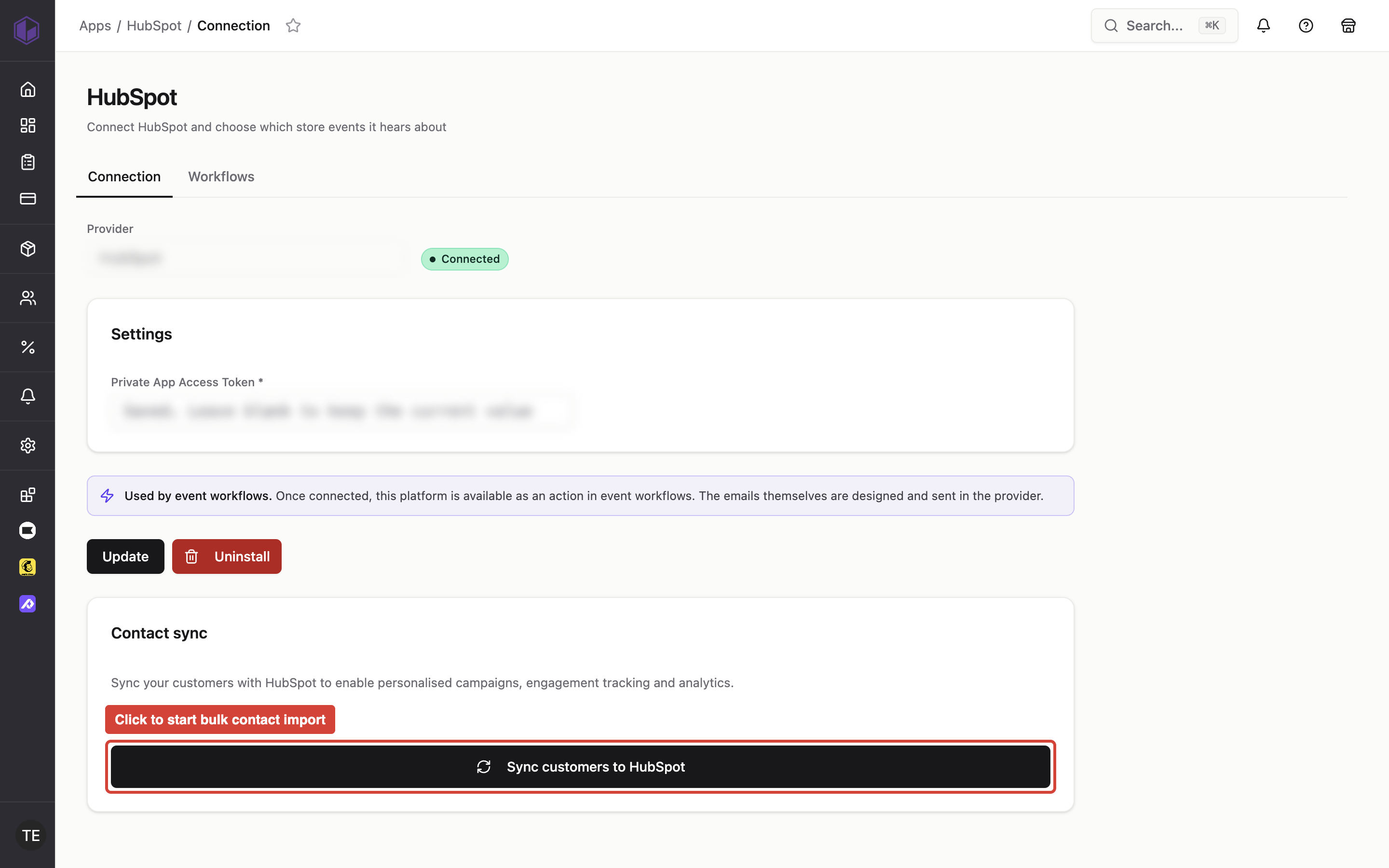
Syncing customers to HubSpot
- Go to Admin → Settings → HubSpot
- Click Sync Users to start a bulk contact import
- A progress bar appears showing the sync status — you can leave the page and return; the sync continues in the background
- When complete, the page displays the total number of contacts processed and the sync completion time
- Run a sync anytime after importing new customers or making bulk updates to customer data
Creating and updating individual contacts
- When a new customer creates an account, CommerceBuild automatically creates a contact in HubSpot with their email, name, phone, address, city, zip, and country
- When a customer updates their profile, CommerceBuild updates the corresponding HubSpot contact
- You can look up a contact in HubSpot by their email address using the
getContactByEmailoperation
Tracking abandoned carts
- When a customer adds items to their cart and starts checkout, CommerceBuild creates a cart object in HubSpot with status "pending"
- The cart includes:
- Cart name and external cart ID
- Total price and currency code
- A URL link back to the cart
- Associated contact (the customer)
- Line items for each product (name, SKU, quantity, price, image URL, product URL)
- If the customer completes their order, the cart status updates to "fulfilled"
- Set up a HubSpot workflow that triggers on carts with "pending" status to send abandoned cart emails based on your timing rules
- If the cart updates to "fulfilled" before the workflow triggers, the email won't send
Managing cart data
- CommerceBuild searches for existing carts by external cart ID before creating new ones to prevent duplicates
- When updating a cart (for example, on re-checkout), CommerceBuild retrieves existing line items and archives them before creating fresh line items
- Cart-to-contact and cart-to-line-item associations are created automatically using HubSpot association type IDs (586 for cart-contact, 590 for cart-line-item)
Monitoring bulk imports
- After triggering a bulk contact import, CommerceBuild receives a
bulkImportIdfrom HubSpot - Use the
getImportInfooperation to check import status and counters:- Total rows processed
- Objects created
- Objects updated
- Errors encountered
- The sync progress page polls this endpoint to display real-time progress
Troubleshooting
-
Sync shows failed contacts — Check that customer records have valid email addresses. HubSpot requires an email to create or update a contact. Verify that the email field is not empty or malformed in CommerceBuild.
-
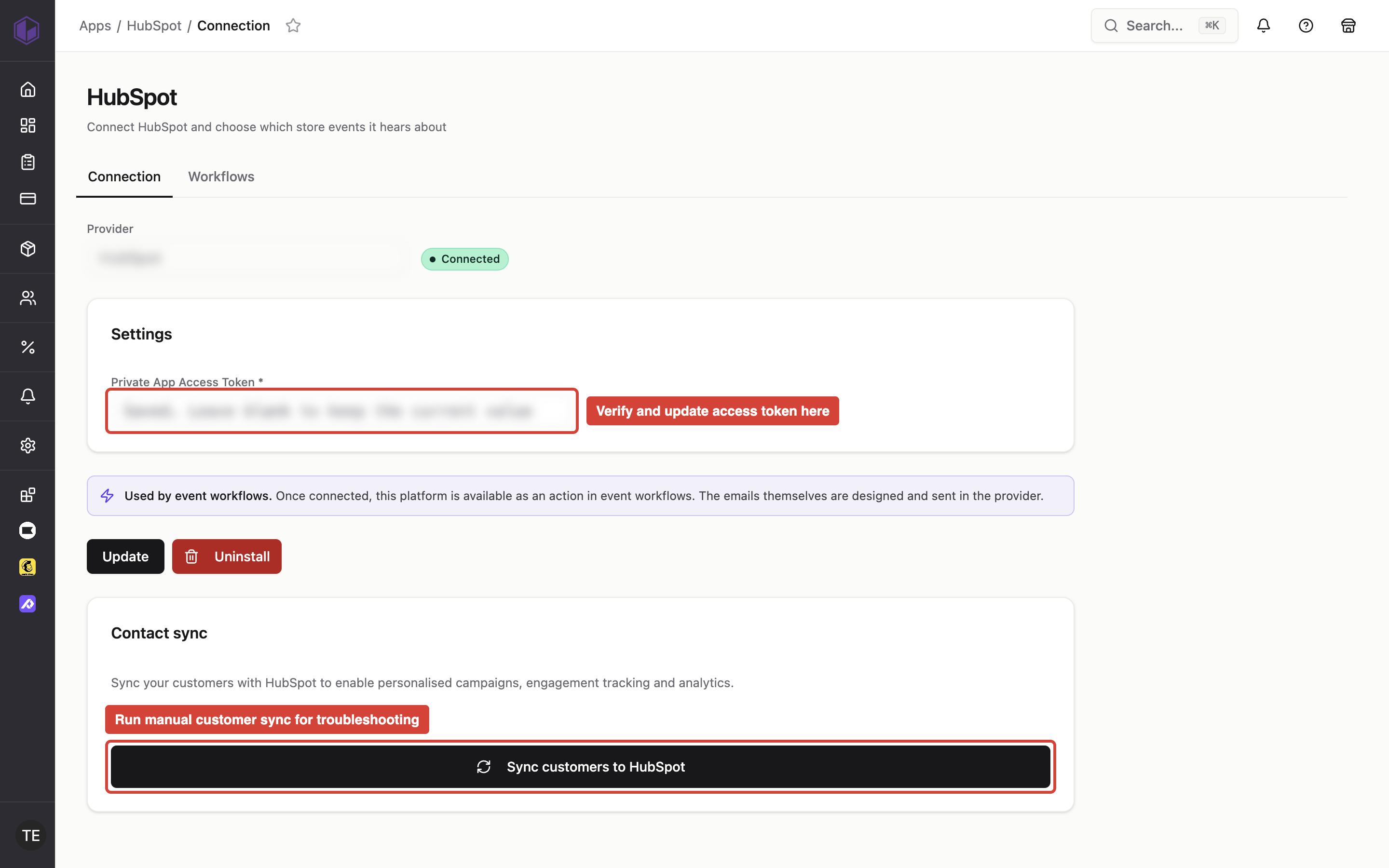
Access token authentication fails — Verify your access token has not expired and includes the required scopes (contacts, carts, line_items, imports). Regenerate the token in HubSpot if needed and update it in the CommerceBuild settings.
-
Abandoned cart emails aren't sending — Confirm the customer exists as a contact in HubSpot by running a customer sync. Check that your HubSpot workflow is active and configured to trigger on carts with
hs_external_statusequal to "pending". -
Customer completed order but still received the abandoned cart email — The cart may not have updated to "fulfilled" status. Verify the order completed successfully in CommerceBuild. Check the cart record in HubSpot to see if
hs_external_statusis still "pending". -
Cart doesn't show line items in HubSpot — Line items require a product name and SKU to be created. Check that the products in the cart have these fields populated in CommerceBuild. If a product is missing a SKU, the line item creation will fail silently.
-
Duplicate carts appear in HubSpot — The
searchCartoperation should prevent duplicates by looking up thehs_external_cart_idbefore creating a new cart. If duplicates appear, verify that the external cart ID is consistent across cart creation calls and not changing between updates. -
Import progress shows zero completed — The bulk import may still be processing on HubSpot's side. Wait a few minutes and refresh the page. For very large contact lists (10,000+), imports can take 10-15 minutes to complete.
-
Line items disappear when cart is updated — This is expected behavior. When a cart is re-synced (for example, if the customer modifies their cart), CommerceBuild archives the old line items and creates fresh ones to ensure accuracy. The archived line items remain in HubSpot's historical data.
-
Contact update fails with "userId not found" — The
updateContactoperation requires the HubSpot contact ID in theuserIdfield. If you only have the customer's email, first callgetContactByEmailto retrieve the contact ID, then pass it toupdateContact.