Klaviyo
Klaviyo is a marketing automation platform that syncs customer profiles and tracks behavioral events from your CommerceBuild store. Use it to trigger personalized email campaigns, segment audiences based on browsing and purchase activity, and automate customer lifecycle messaging.
Install Klaviyo from the App Store
Where to find it: Admin → App Store → Marketing Integrations → Klaviyo
When you'd use this: You want to add Klaviyo to your store so you can configure it to sync customer data and track events for email marketing campaigns.
Set it up:
- Navigate to Admin → App Store
- Find Klaviyo under Marketing Integrations
- Click Install
- Complete the configuration by adding your API keys (see "How to configure Klaviyo" below)
Using it day-to-day:
Once installed, Klaviyo appears in your Notification settings under Admin → Notification → Klaviyo. The integration remains inactive until you add your API keys and save the configuration. You can uninstall Klaviyo from the App Store at any time — uninstalling removes the integration and stops all data syncing, but leaves your historical event data and custom fields in place.
How to configure Klaviyo
Where to find it: Admin → Notification → Klaviyo
When you'd use this: After installing Klaviyo from the App Store, you need to connect your Klaviyo account by adding your API keys so customer data and events can flow to Klaviyo.
What you need first:
- Klaviyo installed from the App Store
- A Klaviyo account
- Your Klaviyo Private API Key (found in Klaviyo under Account → Settings → API Keys)
- Your Klaviyo Public API Key (required only if using the trackActiveOnSite operation)
Set it up:
- Navigate to Admin → Notification → Klaviyo
- Enter your Klaviyo Private API Key in the apiKey field
- If you plan to track active site sessions, enter your Klaviyo Public API Key in the publicApiKey field
- Save the configuration
- Enable the operations you want to use (profile sync, event tracking, bulk imports)
Configuration options
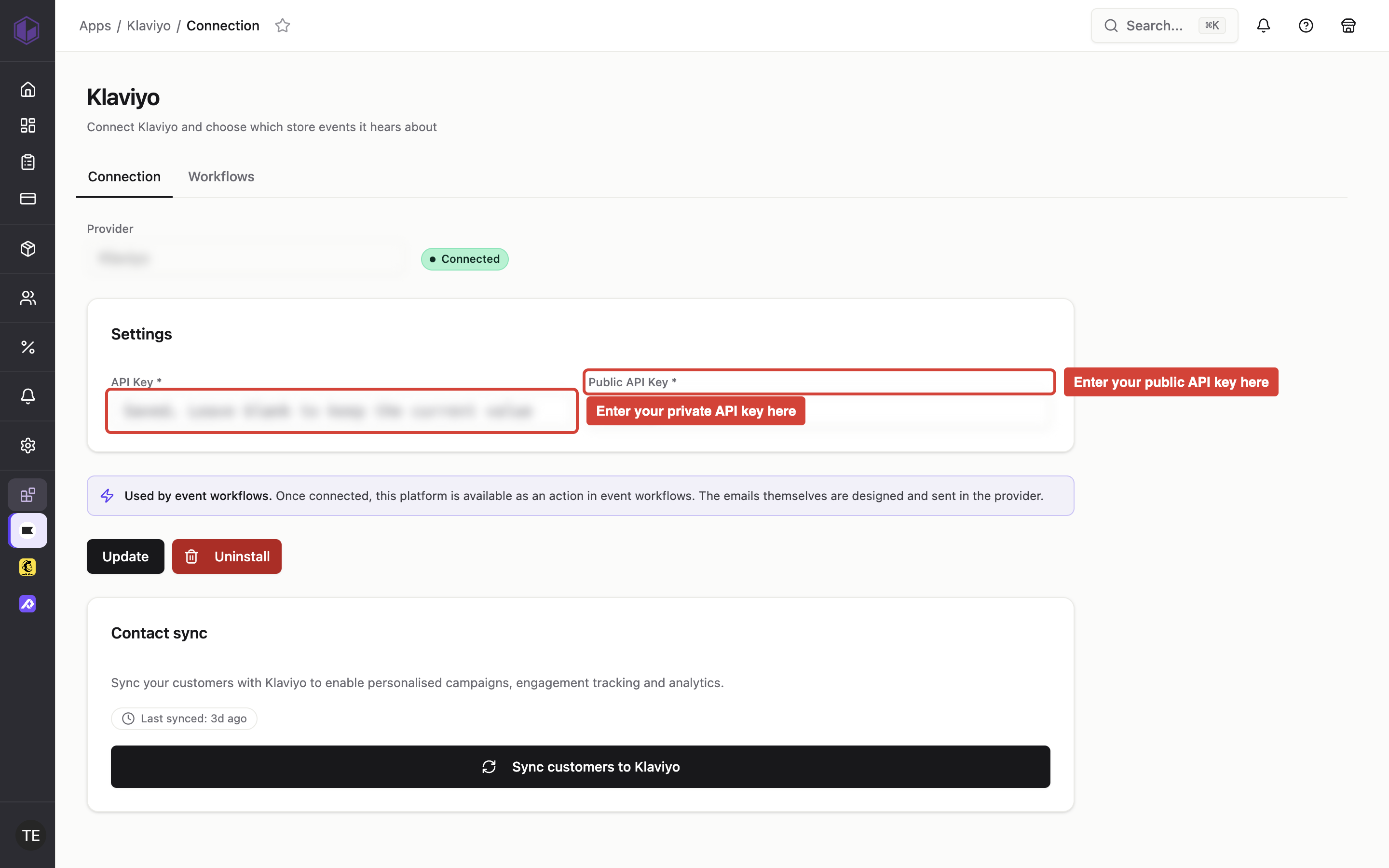
| Field | What it does | Default | Required |
|---|---|---|---|
| apiKey | Your Klaviyo Private API Key, used for authentication in the Authorization header | None | Yes |
| publicApiKey | Your Klaviyo Public API Key, used for the trackActiveOnSite operation | None | No (required only for trackActiveOnSite) |
Set up event-based notifications
Where to find it: Admin → Notification → Edit notification
When you'd use this: You want to trigger Klaviyo actions (like sending events or updating profiles) when specific customer activities occur in CommerceBuild, such as new user registrations, product views, or order placements.
Set it up:
- Navigate to Admin → Notification
- Create or edit a notification
- Choose an event from the Trigger when dropdown (for example, when a new user registers)
- Select an action from the Then dropdown — the list shows only actions supported by the event you selected
- Save the notification
Using it day-to-day:
Once configured, notifications trigger automatically when the selected event occurs. For example, when a new B2C user registers on your site, CommerceBuild can automatically send that event to Klaviyo for lifecycle tracking and campaign automation. Events may take a few minutes to appear in Klaviyo after they're triggered.
Using it day-to-day
-
Profile creation and updates happen automatically when customer data changes in CommerceBuild. The integration creates new profiles in Klaviyo or updates existing ones with current email, name, organization, location, and custom properties. If you trigger a profile update for a customer who doesn't have a Klaviyo profile yet, CommerceBuild automatically creates one instead.
-
Bulk profile imports allow you to sync multiple customer profiles at once. The integration submits a bulk import job and returns a job ID that you can use to check import status.
-
Event tracking captures customer behavior like product views, site activity, and custom events. These events appear in Klaviyo's customer timeline and can trigger automated flows.
-
Product view tracking sends batches of viewed product events to Klaviyo, including product name, ID, URL, and category data for personalized recommendations. If a customer views the same product multiple times within the same hour, CommerceBuild sends only one event to prevent duplicates.
-
Monitoring bulk imports: Use the getBatchImportJob operation with a job ID to check the status, completed count, failed count, and total count of profiles in a bulk import.
Troubleshooting
-
Viewed Product messages not sending: Verify that the product data includes all required fields (description, itemCode, url, categories) and that the user's email is valid. Check that the Viewed Product metric exists in your Klaviyo account.
-
Profile creation fails with status/detail/code errors: The response includes error details from Klaviyo's API. Common causes include invalid email format, missing required fields, or API key permission issues. Check the error code and detail in the response for specific guidance.
-
Bulk import job returns no results: After submitting a bulk import, wait a few moments before checking the job status. Jobs process asynchronously and may show status as "processing" before completing. Use the bulkImportJobId returned from bulkImportProfile to poll getBatchImportJob.
-
Authorization failures: Verify your API key is correct and has the necessary permissions in Klaviyo. The integration uses API revision 2024-07-15, so ensure your key supports that version.
-
Event tracking shows empty properties: Custom event properties must be passed in the correct format. Use the eventProperties array with name/value pairs, and ensure values are properly formatted for JSON output.
-
Events not appearing after new user registration: Check that you've configured a notification with the user registration event as the trigger and a Klaviyo action selected. Events may take a few minutes to appear in the API log and in Klaviyo after the registration occurs.
-
Viewed Product exchanges show as errors but events arrive in Klaviyo: When Klaviyo accepts product view events successfully, it returns an empty response that CommerceBuild may log as an error. Your tracking data is not lost — the events are still recorded in Klaviyo and will appear in customer timelines. This is a cosmetic issue in the exchange log and does not affect your campaigns or event data.
-
Klaviyo doesn't send events after installing from App Store: Installing Klaviyo creates the integration but leaves it inactive until you add your API keys. Navigate to Admin → Notification → Klaviyo, enter your Private API Key, and save the configuration to activate event syncing.