Order Dashboard
View order details from your account
Where to find it: Storefront → My Account → Orders
When you'd use this: When you or your customers need to review order information, including orders that are still being processed or have failed.
What you need first:
- An active customer account
- At least one order in the system
Using it day-to-day:
- Navigate to My Account and select Orders
- Click on any order number to view its details
- The system automatically handles all order types, including:
- Completed orders
- Orders currently being processed
- Failed orders
The order detail page loads correctly regardless of the order's processing status. When you click an order number from the order list, you'll see the complete order information without errors.
Order dates display in your store's configured date format (mm/dd/yyyy for US & Canada format, or dd/mm/yyyy for other regions) and reflect the actual calendar date from your ERP system, regardless of your browser's time zone.
Troubleshooting:
- Order detail page shows an error — This has been resolved. All orders, including those with processing failures, now display correctly when accessed from the order list.
See who placed an order on behalf of a customer
Where to find it: Admin → Order Queue (order details and exports)
When you'd use this: When you need to track accountability for orders placed by administrators or sales representatives who assumed a customer's account. This is particularly useful for B2B scenarios where staff place "On Account" orders on behalf of customers.
What you need first:
- Administrator access to the Order Queue
- Orders that were placed while an admin assumed a customer account
Using it day-to-day:
- Open the Order Queue in the admin
- View an order's details or export orders
- For orders placed by an admin on behalf of a customer, you'll see the specific administrator who placed the order
The system automatically records which administrator assumed the customer's account and completed the order. This information appears in both the order detail view and in order exports from the Order Queue.
Orders placed before this tracking was implemented will show that an admin placed the order, but won't identify the specific user.
Monitor sales, orders, and login activity on the admin dashboard
Where to find it: Admin → Dashboard
When you'd use this: When monitoring daily sales performance, reviewing top-performing orders, and tracking customer login activity. Use the public dashboard section for B2C orders and the B2B dashboard section for dealer orders.
What you need first:
- Administrator access to the Dashboard
Using it day-to-day:
- Navigate to the Admin Dashboard
- Review the dashboard widgets for your sales channel (public or B2B)
Public Section Overview and Dealer Section Overview show five key metrics with period selectors:
- Sales yesterday
- Orders yesterday
- Sales today
- Orders today
- Logins today
You can switch between time periods using the tabs:
- Last Month
- This Month
- Last Year
- This Year
The footer displays totals for the selected period across all three metrics (sales, orders, logins).
Site Logins chart displays login trends across the current year with three lines:
- Public logins (purple)
- B2B logins (blue)
- All logins combined (green)
The chart shows monthly data from January through December, with a year-to-date total displayed at the top.
Order tables show the last 10 orders for each channel with details including:
- Order number and date
- Customer name and user
- Quantity and price
- Status (color-coded: Paid/Shipped in green, Pending in amber, Refunded in gray, Cancelled in red)
- Payment type
The dashboard correctly separates B2B and public order data. B2B orders appear only in the B2B dashboard section, while public/B2C orders appear in the public storefront dashboard. When you edit an order through the admin panel, it maintains its original channel classification.
The dashboard loads quickly with optimized data calls. If you experience slow loading times, contact your system administrator.
Troubleshooting:
- B2B orders appearing in the public Top 10 Orders widget — This has been resolved. Orders maintain their original channel (B2B or public) even after editing.
- Sales Today displays $0.00 when there are actual sales — This has been resolved. The Sales Today widget now accurately reflects the total sales amount for the current day.
Manage orders in the Order Queue
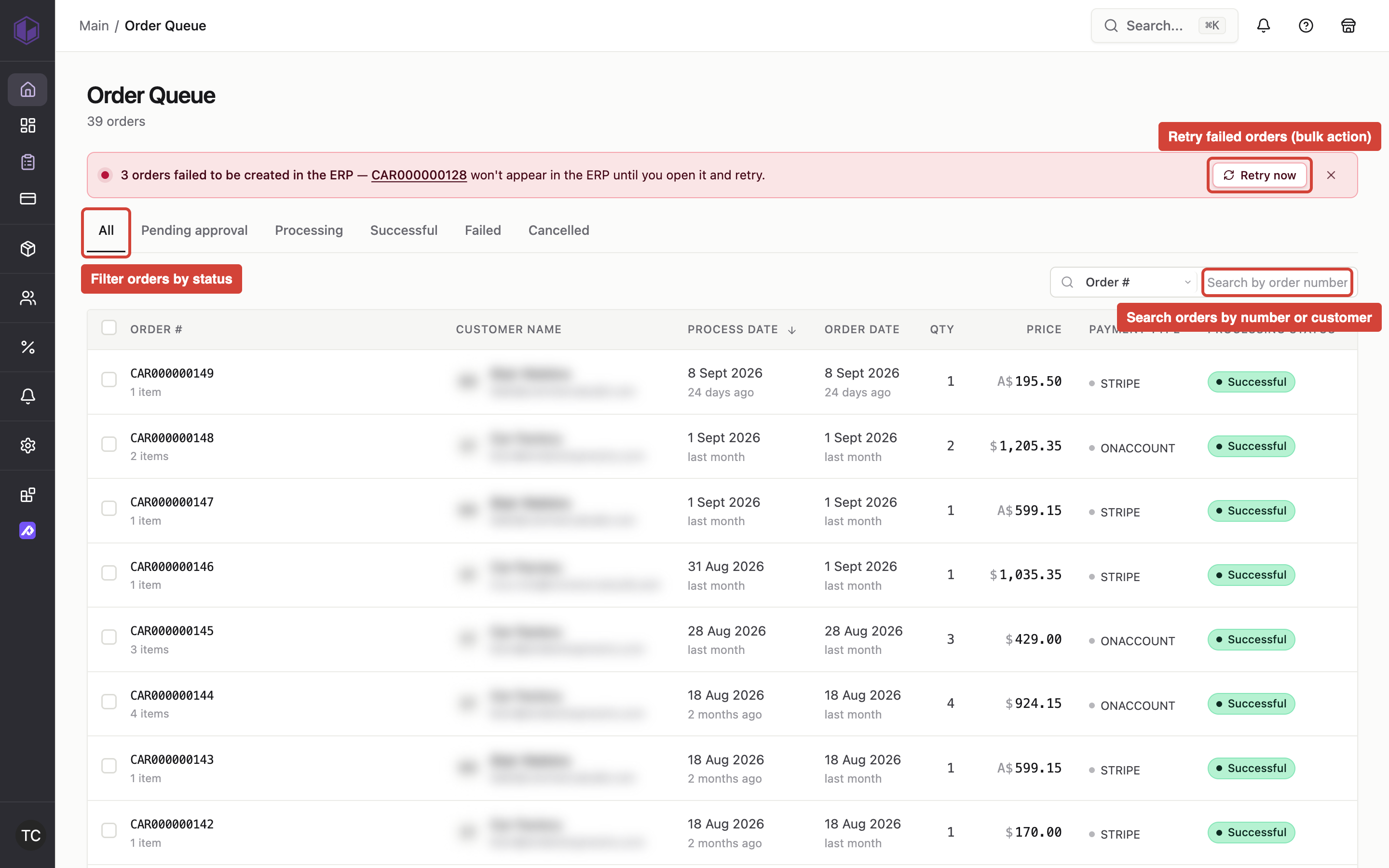
Where to find it: Admin → Order Queue
When you'd use this: When you need to review, approve, cancel, or retry orders. Use this to monitor order processing status, handle pending approvals, troubleshoot failed orders, and track ERP sync issues.
What you need first:
- Administrator access to the Order Queue
Using it day-to-day:
- Navigate to Order Queue in the admin
- Filter orders using the status tabs across the top:
- All
- Pending approval
- Processing
- Successful
- Failed
- Cancelled
- Use the search box to find specific orders by Order #, Customer, or User
- Click any order number to view its complete details
Order list view:
The order list displays orders in a table with color-coded status pills and sortable columns. Each row shows:
- Order number and date
- Customer name with avatar or initials
- User
- Quantity
- Total price
- Status (color-coded pill with dot indicator)
- Payment type
The User column displays the customer's email address for both logged-in and guest orders. For guest orders placed without a customer account, the system shows the billing email address from the order.
Order dates display in your store's configured date format (mm/dd/yyyy for US & Canada format, or dd/mm/yyyy for other regions) and reflect the actual calendar date from your ERP system, regardless of your browser's time zone.
You can select one or more orders using the checkboxes to perform bulk actions. When you select orders, a floating action bar appears with options that depend on the orders you've selected:
- Approve and Cancel for pending orders
- Retry for failed orders
Order detail view:
When you open an order, you'll see a two-column layout:
- Left column: Line items with product thumbnails (or letter badges when images are missing) and order totals
- Right sidebar: Customer information, shipping address, billing address, shipping method, payment details, dates, and custom fields
The header actions adapt to the order's status:
- Approve and Cancel for pending orders
- Retry for failed orders
- Print for other orders
The detail page includes an ERP sync card and Gateway logs card. In the Gateway logs card, you can switch between three tabs:
- Errors
- Request
- Calls (shows ERP integration calls and loads on demand)
When an order is sent to your ERP system, the customer's billing email address is included in the sync data to ensure proper order tracking and communication.
Custom field dates on the order detail page display in a readable format that matches the calendar date from your ERP system, regardless of your browser's time zone.
Sync failure banner:
When there are failed orders in your store, a banner appears at the top of the Order Queue explaining that the order will not appear in the ERP until the sync is retried. The banner shows a count of failed orders and can be dismissed. The banner appears consistently across all status tabs and pages.
Troubleshooting:
- Order sync failed — Use the Retry button in the order detail view or select failed orders in the list and use the bulk Retry action to resend them to your ERP system.
Review transaction history and invoices
Where to find it: Storefront → My Account → Transactions
When you'd use this: When you or your customers need to review invoice details, transaction dates, due dates, and payment status. Use this to verify past invoices and identify overdue payments.
What you need first:
- An active customer account with transaction history in your ERP system
Using it day-to-day:
- Navigate to My Account and select Transactions
- Browse the transaction list or filter by document number, status, or date range
- Click on any transaction to view its complete details
Transaction dates and due dates display in your store's configured date format (mm/dd/yyyy for US & Canada format, or dd/mm/yyyy for other regions). Dates reflect the actual calendar date from your ERP system, regardless of your browser's time zone.
Invoices with outstanding balances show their due date. When an invoice is past due, it displays a warning indicator and highlights the due date. The system determines whether an invoice is overdue based on your store's configured time zone, so invoices transition to overdue status at midnight in your store's local time.
Custom field dates on transaction detail pages display in a readable format that matches the calendar date from your ERP system.