Global Payments
Global Payments is a credit card and alternative payment processor that handles transaction authorization, capture, and refunds at checkout and on invoice payments. Use this integration when you need to process CNP (card-not-present) transactions through Global Payments' Unified Commerce Platform.
How to set it up
Where to find it: Admin → Settings → Payments → Global Payments
When you'd use this: When you want to authorize and capture payments through Global Payments' REST API, typically for e-commerce transactions.
What you need first:
- A Global Payments merchant account
- App ID and secret credentials from your Global Payments developer portal
- Your account name configured in Global Payments
- API access permissions granted to your app
Set it up:
- Navigate to Admin → Settings → Payments → Global Payments
- Enter your App ID from the Global Payments developer portal
- Enter your Secret credential
- Configure the Account Name that matches your Global Payments merchant account
- Set the API Version (typically the latest version supported by Global Payments)
- Configure the Country Code for your default transaction location
- Select your default Currency (e.g., USD, GBP, EUR)
- (Optional) Configure Permissions if you need to restrict API access scope
- Save the configuration
Configuration options
| Field | What it does | Default | Required |
|---|---|---|---|
| appId | Your Global Payments application identifier used for authentication | None | Yes |
| secret | Secret key paired with your app ID for API authentication | None | Yes |
| accountName | The merchant account name in Global Payments that processes transactions | None | Yes |
| apiVersion | The API version header sent with all requests (x-gp-version) | None | Yes |
| currency | Default currency code for transactions (e.g., USD, GBP, EUR) | None | Yes |
| countryCode | Default country code for transactions | None | Yes |
| permissions | Array of permission scopes to request when obtaining access tokens | None | No |
| nonce | Random value used in access token requests for security | Generated | No |
Using it day-to-day
- At checkout, when a customer completes payment, CommerceBuild sends an authorization request to Global Payments with the payment details and tokenized payment method
- The system obtains an access token from Global Payments using your app credentials and nonce value
- An authorization hold is placed on the customer's payment method with
capture_modeset toLATER - The transaction is created with a unique reference and idempotency key to prevent duplicate charges
- If the authorization request doesn't receive a response from Global Payments, the system checks whether a transaction was created by searching Global Payments using your order reference
- If Global Payments shows no transaction after checking twice with a short delay, the system sends the authorization request again
- When the order ships or is ready to fulfill, an admin or automated process triggers a capture operation
- The capture request references the original transaction ID and specifies the final amount to settle
- Global Payments processes the capture and funds are transferred to your merchant account
- All requests include unique identifiers to ensure safe retries and prevent duplicate charges
Automatically capture pre-authorized payments when invoices are created
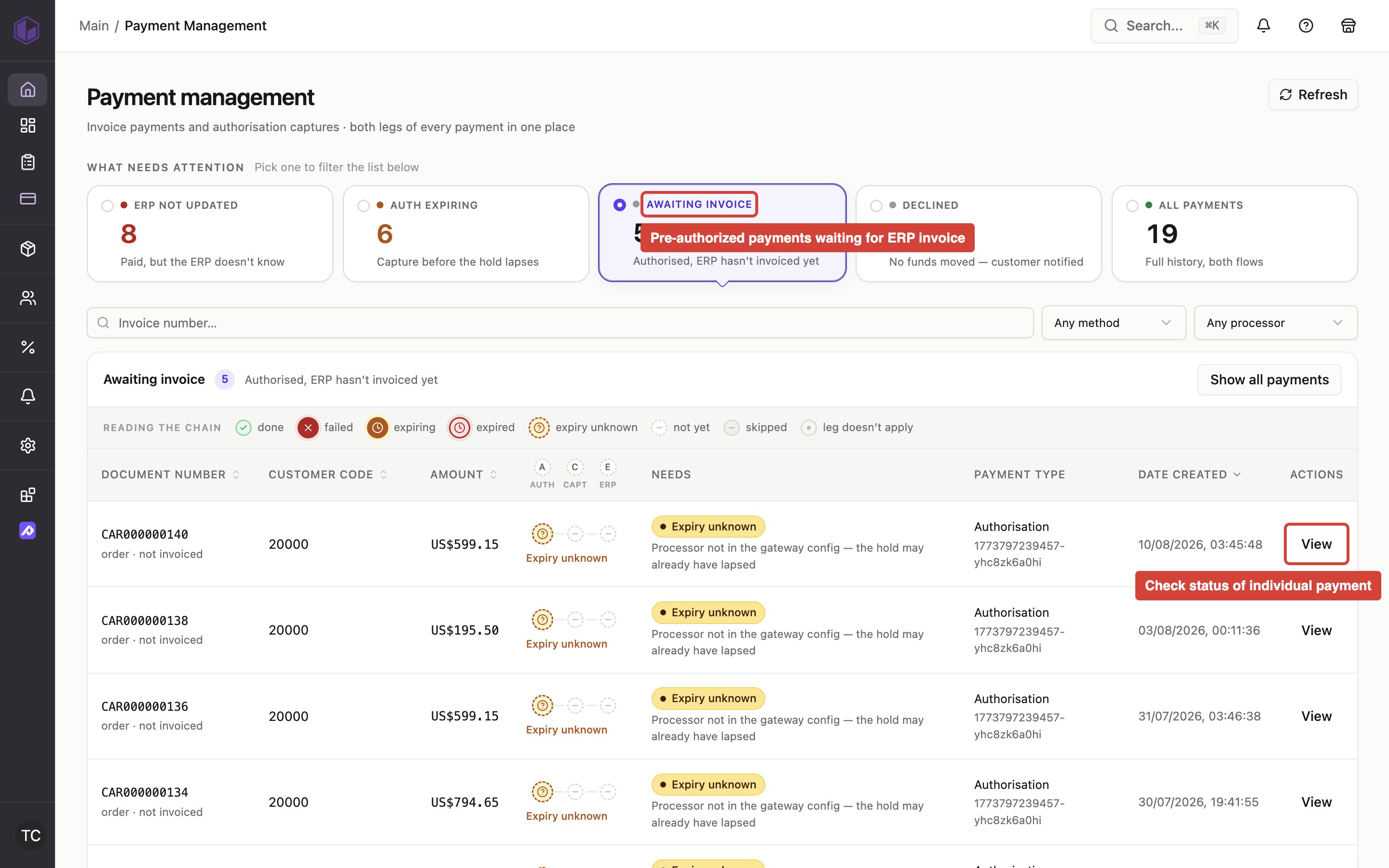
When you'd use this: When you want pre-authorized Global Payments transactions to automatically capture and settle when invoices are created in your ERP system (Business Central or Sage X3), instead of manually capturing each payment.
What you need first:
- Global Payments configured with pre-authorization mode enabled
- Auto Capture feature enabled for your store
- ERP integration configured (Business Central or Sage X3)
How it works:
- A customer places an order and pays at checkout using Global Payments
- The payment is pre-authorized but not yet captured — funds are held on the customer's payment method
- When you create an invoice for that order in your ERP system (Business Central or Sage X3), CommerceBuild detects the invoice event
- The system automatically captures the pre-authorized payment through Global Payments
- A payment receipt is written back to your ERP system
- The capture appears in both CommerceBuild and your ERP
Important details:
- The system matches invoices to orders using the store ID and order number
- If your store uses separate bill-to and ship-to customer accounts, the system will still correctly match the order to the invoice even when the customer codes differ
- This works for both single-order invoices and invoices that consolidate multiple orders
- The captured amount will not exceed the original pre-authorized amount
Troubleshooting
- Payment processor doesn't load — Verify that the shipping address includes a valid country code; Global Payments requires country data for transaction processing
- Authorization fails with authentication error — Check that your App ID and Secret are correct and that the API version matches what your Global Payments account supports
- Duplicate transaction errors — The system uses unique references to prevent duplicates; if you see this error, the original transaction likely succeeded and can be verified in Global Payments portal
- Capture fails — Verify that the authorization hasn't expired (pre-authorizations have expiry windows) and that the capture amount doesn't exceed the authorized amount
- iFrame payment form doesn't load — If using an embedded payment iFrame, ensure iFrameResize is properly initialized before the payment form loads to avoid binding race conditions
- Auto capture doesn't trigger for an invoice — Verify that the order was paid using Global Payments in pre-authorization mode and that Auto Capture is enabled for your store. Check that the invoice and order are in the same store.
- Payment shows as failed but customer says they weren't charged — If the authorization request didn't receive a response from Global Payments (for example, due to a network issue), the system automatically checks whether the transaction was created before attempting again. This prevents charging the customer twice while ensuring the payment is processed.
- Customer's cardholder name appears blank in payment details — Global Payments doesn't require a cardholder name, so if a customer submits payment without entering their name, the field will be empty in your payment records. The payment will still process normally.