Payment Rules
Restrict payment methods for blocked customers
Where to find it: Admin → Payments → Rules
When you'd use this: When you need to prevent customers with blocked accounts from placing orders, or require them to contact customer service before checking out. Common in B2B when a customer has exceeded credit terms or has an overdue balance.
What you need first:
- Admin permissions to manage payment rules
- Payments enabled for your store
- Customer blocking enabled in your ERP (Business Central, Sage X3, or Sage 300)
Set it up:
- Navigate to Admin → Payments → Rules
- Create a new rule or edit an existing payment processor rule
- Add a filter condition: Customer Blocked equals Blocked
- Choose your approach:
- Block all payment methods: Apply this rule to all payment processors to prevent checkout entirely
- Block specific methods: Apply to select processors only (e.g., block credit card but allow invoice payment)
- Optional: Configure a custom user message explaining the account hold and providing customer service contact information
- Save the rule
How it works:
When a customer with a blocked account attempts to checkout:
- Payment methods matching your rule conditions will not appear at checkout
- If all payment methods are blocked, the customer cannot complete checkout
- Any custom message you configured will display to guide them to contact your team
The blocked status syncs from your ERP system's standard customer blocking field, so blocking a customer in Business Central, Sage X3, or Sage 300 automatically applies the rule in CommerceBuild.
Payment rules are cached for performance and automatically refresh in the background. The system reloads rules periodically and whenever you save changes to payment settings.
Troubleshooting:
- Blocked customers still see payment options — Verify the rule condition is set to "Customer Blocked equals Blocked" and the rule is applied to the correct payment processors. Check that the customer's blocked status has synced from your ERP.
- All customers are blocked from checkout — Review your rule conditions to ensure you're filtering on customer blocked status, not applying the block universally. Edit the rule to add the customer blocked condition.
- Exclusion rules stop applying after a period of time — Navigate to Admin → Payments → Setup and save your payment settings. This immediately reactivates all configured rules. If you notice customers seeing payment methods they shouldn't or completing orders with blocked payment methods, re-saving payment settings forces an immediate reload of all rules.
Filter payment methods by customer custom fields
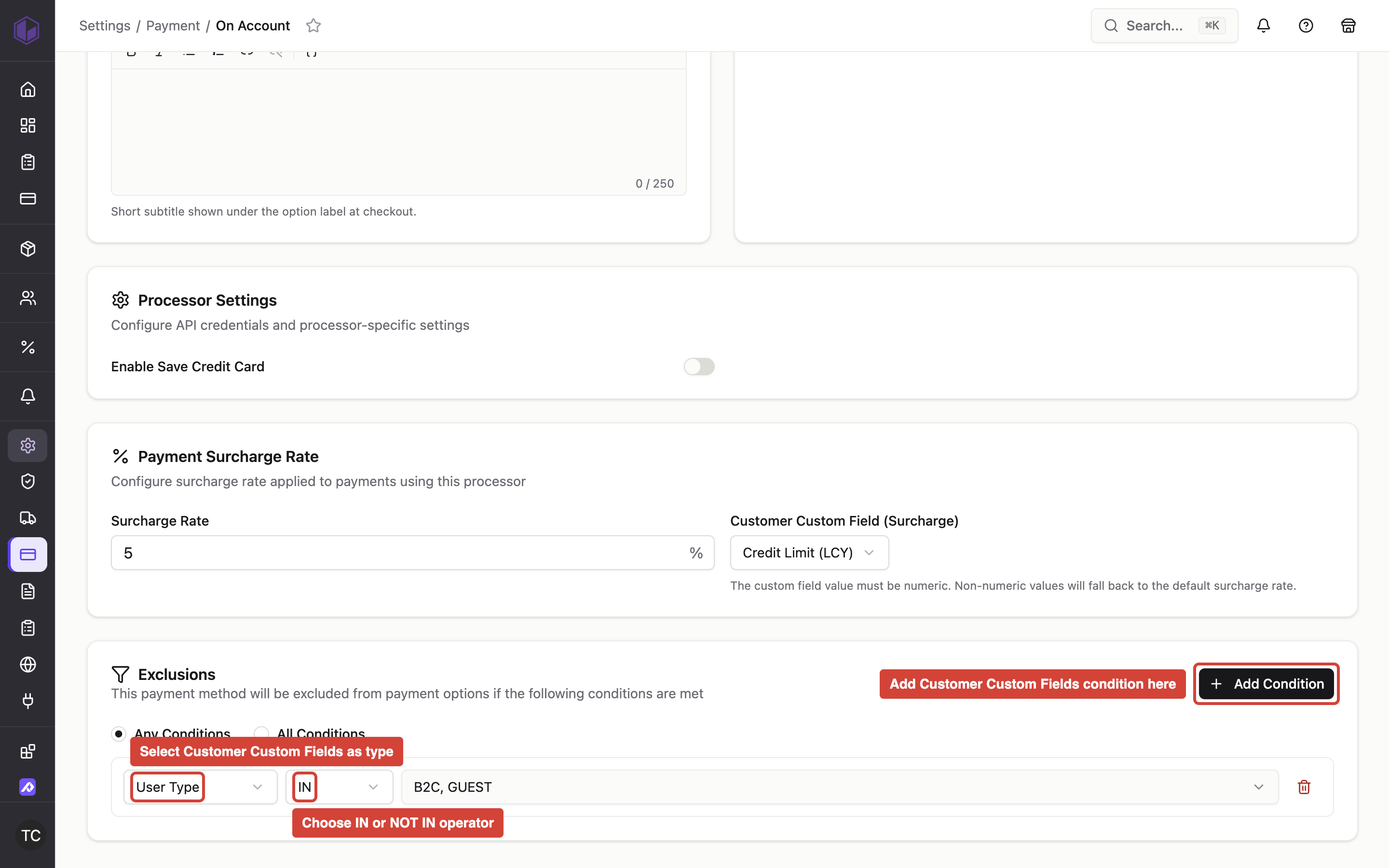
Where to find it: Admin → Payments → Rules (under Exclusions for each payment processor)
When you'd use this: When you need to show or hide specific payment methods based on custom data stored in your ERP customer records. Common in B2B to restrict payment options based on attributes like prepayment percentage, risk category, or contract type.
What you need first:
- Admin permissions to manage payment rules
- Custom fields configured in your ERP (Business Central, Sage X3, or Sage 300) and syncing to CommerceBuild
- The field ID from your ERP for the custom field you want to filter on
Set it up:
- Navigate to Admin → Payments → Setup and select the payment processor you want to configure
- Under Exclusions, set the match mode (Any Conditions or All Conditions)
- Add a condition and select Customer Custom Fields as the type
- Choose your operator:
- IN — Show this payment method only when the customer's field value matches one of the values you specify
- NOT IN — Hide this payment method when the customer's field value matches
- Enter the field ID from your ERP (e.g., "Prepayment %" or "BCC
18124") - Enter the value(s) to match against
- Save the processor settings
How it works:
When a customer reaches checkout or the Pay Open Invoice page:
- The system evaluates the customer's custom field values from your ERP against each processor's exclusion rules
- Payment processors with IN conditions only appear if the customer's field value matches
- Payment processors with NOT IN conditions are hidden if the customer's field value matches
- If a customer has no value stored for the field you're filtering on, NOT IN rules will match and hide the processor
- Rules combine with any other exclusion conditions you've configured (country, payment terms, blocked status, etc.)
Custom field values sync from your ERP, so changes in Business Central, Sage X3, or Sage 300 automatically update rule behavior in CommerceBuild.
Troubleshooting:
- Payment methods disappear unexpectedly — Check your exclusion conditions. If a customer has no value for a custom field, NOT IN rules treat that as a match and hide the processor. Verify the field values are syncing correctly from your ERP.
- Rules don't apply to some customers — Confirm the custom field is populated in your ERP for those customers and has successfully synced to CommerceBuild. The field ID must match exactly between your rule configuration and your ERP field.
- All payment methods vanish from Pay Open Invoice — This can happen if exclusion rules fail to evaluate properly. Navigate to Admin → Payments → Setup, re-save your payment processor settings, and verify your Customer Custom Fields conditions include valid field IDs and values.