Windcave
Windcave is a payment processor that handles credit card and alternative payment transactions at checkout and on invoice payments. CommerceBuild supports two Windcave products: POS for integrated point-of-sale terminals, and ecommerce for online payment sessions via API.
How to set it up
Where to find it: Admin → Settings → Payments → Windcave
When you'd use this: You need to accept credit card payments either through physical POS terminals (for in-person transactions) or via Windcave's hosted payment page (for online checkout and invoice payments).
What you need first:
- A Windcave merchant account
- For POS: HIT credentials (
hitUsername,hitKey), device ID, vendor ID, POS name, and station ID from your Windcave account - For ecommerce: API credentials (
apiUsername,apiKey) from your Windcave account
Set it up:
- Navigate to Admin → Settings → Payments → Windcave
- Choose the product that matches your use case:
- POS if you're integrating with physical Windcave terminals
- ecommerce if you're accepting payments online or via invoice payment links
- Enter the required credentials for your chosen product (see Configuration options below)
- The base URL defaults to Windcave's UAT environment (
https://uat.windcave.com). Update this to the production URL when you're ready to go live - Save the configuration
- Test a transaction to confirm the integration is working
Configuration options
POS product
| Field | What it does | Default | Required |
|---|---|---|---|
| hitUsername | Username for Windcave HIT (Hosted Integration Toolkit) authentication | (empty) | Yes |
| hitKey | Authentication key for Windcave HIT | (empty) | Yes |
| deviceId | Identifier for the physical POS device | (empty) | Yes |
| vendorId | Your vendor identifier assigned by Windcave | (empty) | Yes |
| posName | Name of the POS system | (empty) | Yes |
ecommerce product
| Field | What it does | Default | Required |
|---|---|---|---|
| apiUsername | Username for Windcave API authentication | (empty) | Yes |
| apiKey | Base64-encoded API key used in Basic Authentication header | (empty) | Yes |
Using it day-to-day
POS workflow
- When a payment is initiated, CommerceBuild sends a transaction request to the configured POS terminal via Windcave HIT
- The customer completes the payment on the physical terminal (card insert/tap, PIN entry, etc.)
- The terminal communicates the result back through Windcave's API
- CommerceBuild receives the transaction status and updates the order or invoice accordingly
- Use the
getTransactionStatusoperation to poll for transaction completion if needed
ecommerce workflow
- When a customer reaches checkout or pays an invoice, CommerceBuild creates a payment session with Windcave
- The customer is redirected to Windcave's hosted payment page
- The customer enters their card details and completes the transaction on Windcave's secure page
- After payment, the customer is redirected back to your store
- CommerceBuild checks the session status in short intervals to confirm the payment result
- The order or invoice is updated based on the transaction outcome
- Card tokens can be stored (if
storeCard: true) for future use
How the checkout polling works:
The payment page checks the session status every few seconds (every 3 seconds by default) while the customer is on Windcave's hosted payment page. Each status check runs for up to 15 seconds before returning, then immediately starts the next check. This ensures the checkout waits for the customer to finish entering their card details, complete 3D Secure verification, and receive final approval from their bank before advancing.
The checkout continues checking until it receives a final result (authorized, declined, or failed). If the payment session doesn't complete within 10 minutes, the checkout displays a timeout message and asks the customer to try again.
Troubleshooting
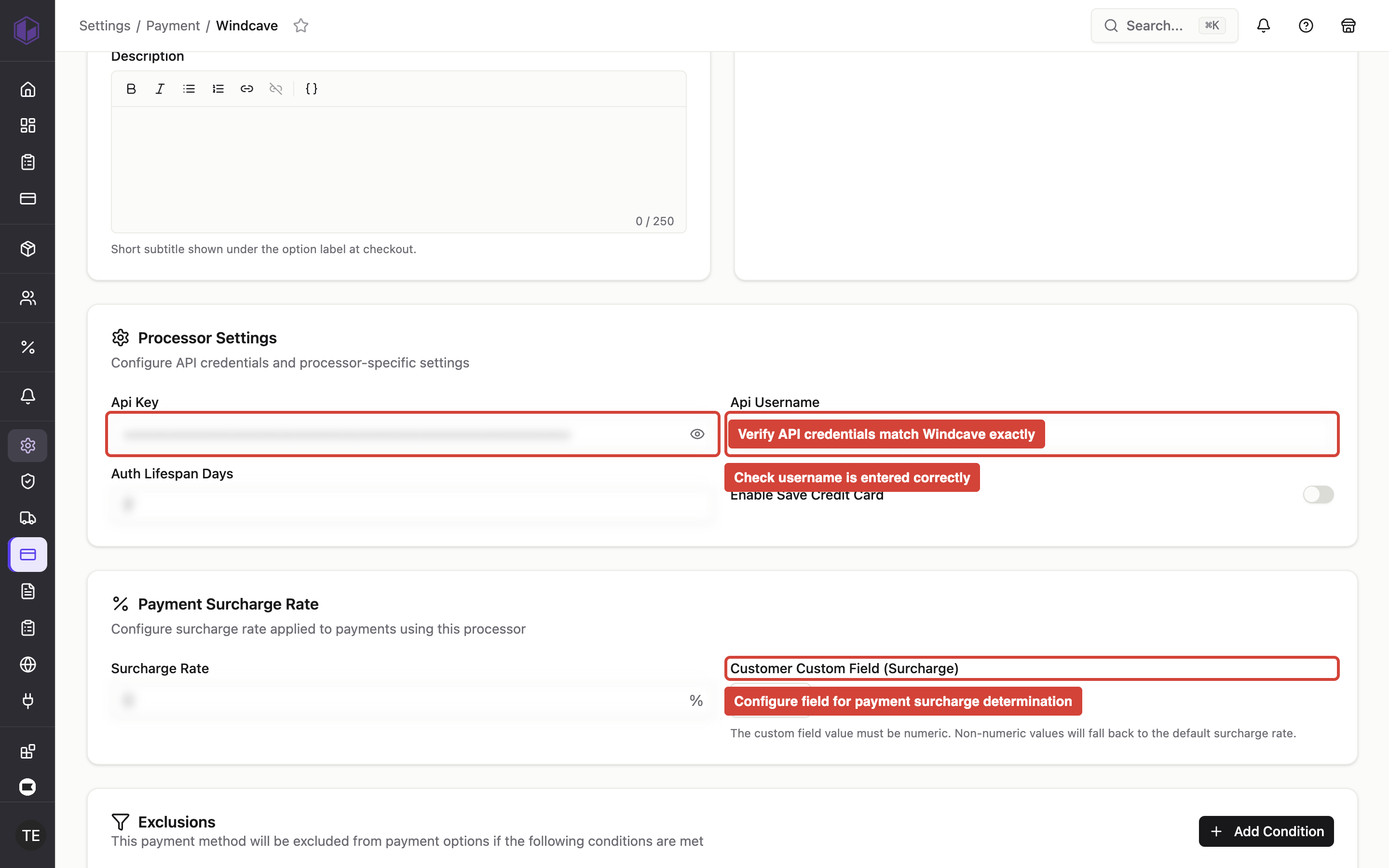
- 500 error after paying invoice: Ensure the session query operation is correctly configured and that the
sessionIdparameter is being passed correctly. Verify API credentials are valid. - Transaction status not updating: For POS transactions, confirm the
stationIdmatches the device configuration. For ecommerce, verify the session ID is being correctly stored and retrieved for the query operation. - Authentication failures: Double-check that credentials are entered exactly as provided by Windcave. For ecommerce, ensure the
apiKeyis properly Base64-encoded for the Basic Authentication header. - Payment surcharge not applying: If using customer-level custom fields to determine surcharges, verify the custom field is correctly configured in the payment method settings.
- XML parsing errors (POS): The POS interface uses XML request/response format. Ensure the XSLT transform is processing the Windcave response correctly. Check that all required fields are present in the response.
- Wrong environment: If transactions aren't appearing in your Windcave dashboard, confirm you've updated the base URL from UAT (
https://uat.windcave.com) to production. - "Your payment session has timed out" message: The customer took longer than 10 minutes to complete payment on the Windcave page. Ask them to try again and complete the payment more quickly, or contact Windcave to adjust your session timeout settings.
- "We couldn't confirm your payment" message: The checkout couldn't verify the payment status after multiple attempts. This usually indicates a temporary connection issue. Ask the customer to check their bank account or card statement to see if the charge went through, then retry or contact support if the charge appears but the order wasn't created.