Promotions
Promotions let you offer discounts and incentives to customers through flexible rules-based campaigns. You can create automatic discounts that apply at checkout, promo codes customers enter manually, percentage or fixed-amount savings, and special offers like Buy X Get Y or free shipping.
Promotion types
CommerceBuild supports four promotion types, each designed for specific discount scenarios:
Order Promotion
Applies a discount to the entire order total when conditions are met. Use this when you want to reward customers for reaching a purchase threshold or to offer store-wide sales. Learn more →
Item Promotion
Applies a discount to specific products or product categories. Use this when you want to discount particular items, clear inventory, or to promote a product line. Learn more →
Buy X Get Y
Rewards customers with a discounted or free product when they purchase qualifying items. Use this for bundle deals, "buy one get one" offers, or to encourage purchases of complementary products. Learn more →
Free Shipping
Removes shipping charges when conditions are met. Use this to incentivize larger orders or reward customer segments. Learn more →
Dimensions that apply to all promotions
Every promotion — regardless of type — has these configurable dimensions:
Method
Determines how customers access the promotion:
- Promo Code — Customer must enter a specific code at checkout
- Auto Promo — Automatically applies when conditions are met
Promo Code field
Every promotion requires a promo code, regardless of method:
- For Promo Code promotions — This is the code customers enter at checkout to activate the discount
- For Auto Promo promotions — This is an internal identifier for the promotion (customers never see it)
The promo code must be unique across all promotions in your store.
Value type
Sets how the discount is calculated (not applicable to Free Shipping):
- Percentage — Discount as a percentage of the eligible amount
- Fixed Amount — Discount as a specific dollar amount
Minimum purchase
Controls when the promotion becomes available:
- Nothing — No minimum required
- Purchase Amount — Customer must reach a minimum order subtotal
- Quantity Of Item — Customer must purchase a minimum quantity of eligible items
Customer eligibility
Restricts who can use the promotion:
- Nothing — All customers are eligible
- Customer Code — Specific customer accounts by code
- Customer Group — All customers in selected groups
- User Group — All users in selected groups
Maximum discount use
Limits how many times the promotion can be applied:
- Unlimited — No limit on usage
- One Per User — Each customer can use it once
- X Amount Of Time — Total usage cap across all customers
Validity period
Every promotion has a start date/time and end date/time that define when it's active. The promotion will not apply outside this window, even if all other conditions are met.
Combination rules
You can specify which other promotion types can be combined with this promotion. This prevents over-discounting while allowing complementary offers to stack.
Order Promotion, Item Promotion, and Buy X Get Y promotions can each be combined with promotions of the same type — for example, two Item Promotion offers can stack on the same order if both are configured to allow it. Free Shipping promotions cannot be combined with other Free Shipping promotions, because multiple free shipping discounts would credit the shipping cost more than once.
How to set it up
Where to find it: Admin → Promotions → Add Promotion
When you'd use this: You want to create a new discount campaign, seasonal sale, customer incentive, or any rules-based offer for your store.
What you need first:
- Admin access to Promotions
- Promotions enabled on your store
- A unique promo code (for both Promo Code and Auto Promo methods)
- For item-specific promotions: product codes or category IDs
- For customer-restricted promotions: customer codes, customer group IDs, or user group IDs
- Start and end dates/times for the promotion validity period
Set it up:
- Navigate to Promotions in the Admin interface
- Click Add Promotion
- Select the promotion type (Order Promotion, Item Promotion, Buy X Get Y, or Free Shipping)
- Choose the method:
- Promo Code — For promotions where customers must enter a code
- Auto Promo — For promotions that apply automatically
- Enter a unique Promo Code:
- For Promo Code promotions: this is what customers type at checkout
- For Auto Promo promotions: this is an internal identifier (customers never see it)
- Enter a description that identifies this promotion in the admin (customers do not see this)
- Set the validity period with start and end date/times
- For Order Promotion, Item Promotion, and Buy X Get Y, configure:
- Value type (Percentage or Fixed Amount)
- The discount value (percentage number or dollar amount)
- Configure minimum purchase requirements:
- Select Nothing, Purchase Amount, or Quantity Of Item
- If Purchase Amount: enter the minimum subtotal
- If Quantity Of Item: enter the minimum quantity
- For Item Promotion, define item eligibility:
- Item List — Search for and select specific products by code or description
- Item Category — Select product categories
- Configure customer eligibility:
- Select Nothing, Customer Code, Customer Group, or User Group
- If restricted: select or enter the qualifying customers/groups
- Set maximum discount use:
- Unlimited — No restrictions
- One Per User — Each customer can use once
- X Amount Of Time — Enter the total usage limit
- For Buy X Get Y, configure the qualifying and reward items by searching for products by code or description (see the Buy X Get Y page for details)
- For Free Shipping, configure any excluded countries (see the Free Shipping page for details)
- Select which promotion types can combine with this one:
- For Order Promotion, Item Promotion, and Buy X Get Y: you can select any promotion type, including the same type as the promotion you're creating
- For Free Shipping: you can select Order Promotion, Item Promotion, and Buy X Get Y, but not Free Shipping
- Set the promotion to Active if you want it to take effect immediately (within the validity period)
- Click Save
Edit promotions after creation
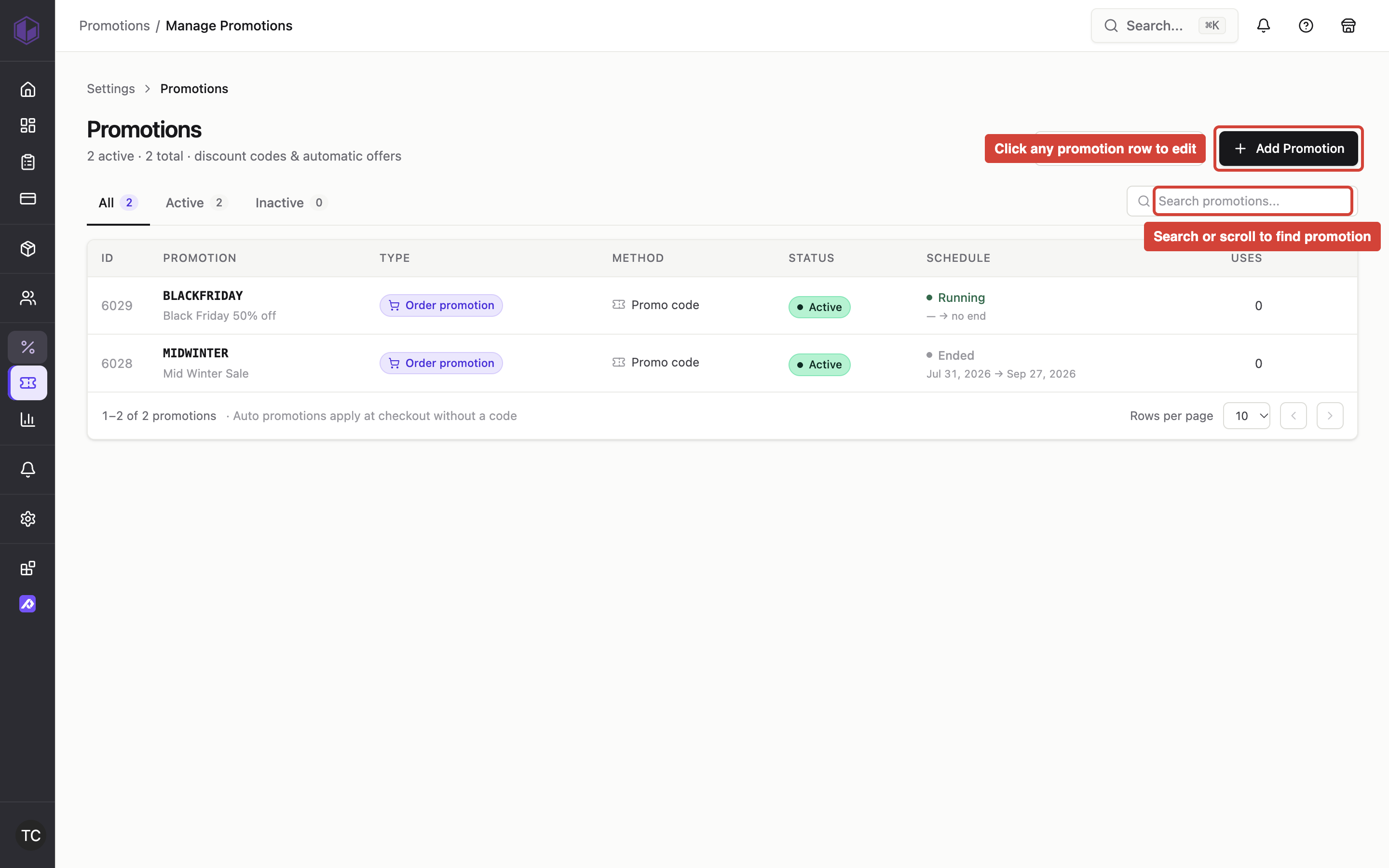
Where to find it: Admin → Promotions → click any promotion in the list
When you'd use this: You need to extend a promotion's end date, adjust the discount value based on early performance, fix a typo in the promo code, change eligibility criteria, or modify any other promotion setting after it's already running.
What you need first:
- Admin access to Promotions
- An existing promotion
Set it up:
- Navigate to Promotions in the Admin interface
- Click the promotion you want to edit
- Make your changes to any field — all promotion settings can be edited after creation
- Click Save
Using it day-to-day:
- Promotions can be edited at any time, whether they haven't started yet, are currently running, or have already ended
- Edits apply immediately to new orders and customers viewing the storefront
- Customers who already have a promotion applied to their cart continue to see the discount that was active when they added it — the discount remains stable for the life of their cart
- Past orders keep the discount values that were in effect when the order was placed — editing a promotion does not retroactively change historical redemptions
- If you change the promo code on a Promo Code promotion, customers must enter the new code to activate the discount — the old code no longer works
- A floating save bar appears when you make changes, allowing you to save or discard your edits
- The promotion editor shows the same fields as the creation form — you can edit the promotion type, method, code, description, discount value, validity period, minimum purchase, item eligibility, customer eligibility, maximum use count, and combination rules
Troubleshooting:
- Customer sees a different discount amount than you just set — If they added items to their cart before you edited the promotion, their cart preserves the discount that was active at that time. The new discount value applies once they start a fresh cart or the promotion is reapplied.
- Old promo code still works after changing it — Customers who entered the old code before you changed it retain that discount in their active cart. New customers must use the new code.
- Edit doesn't appear on past orders — Promotion edits only affect new redemptions. Orders already placed continue to show the discount values that were active when the customer checked out.
View promotion performance
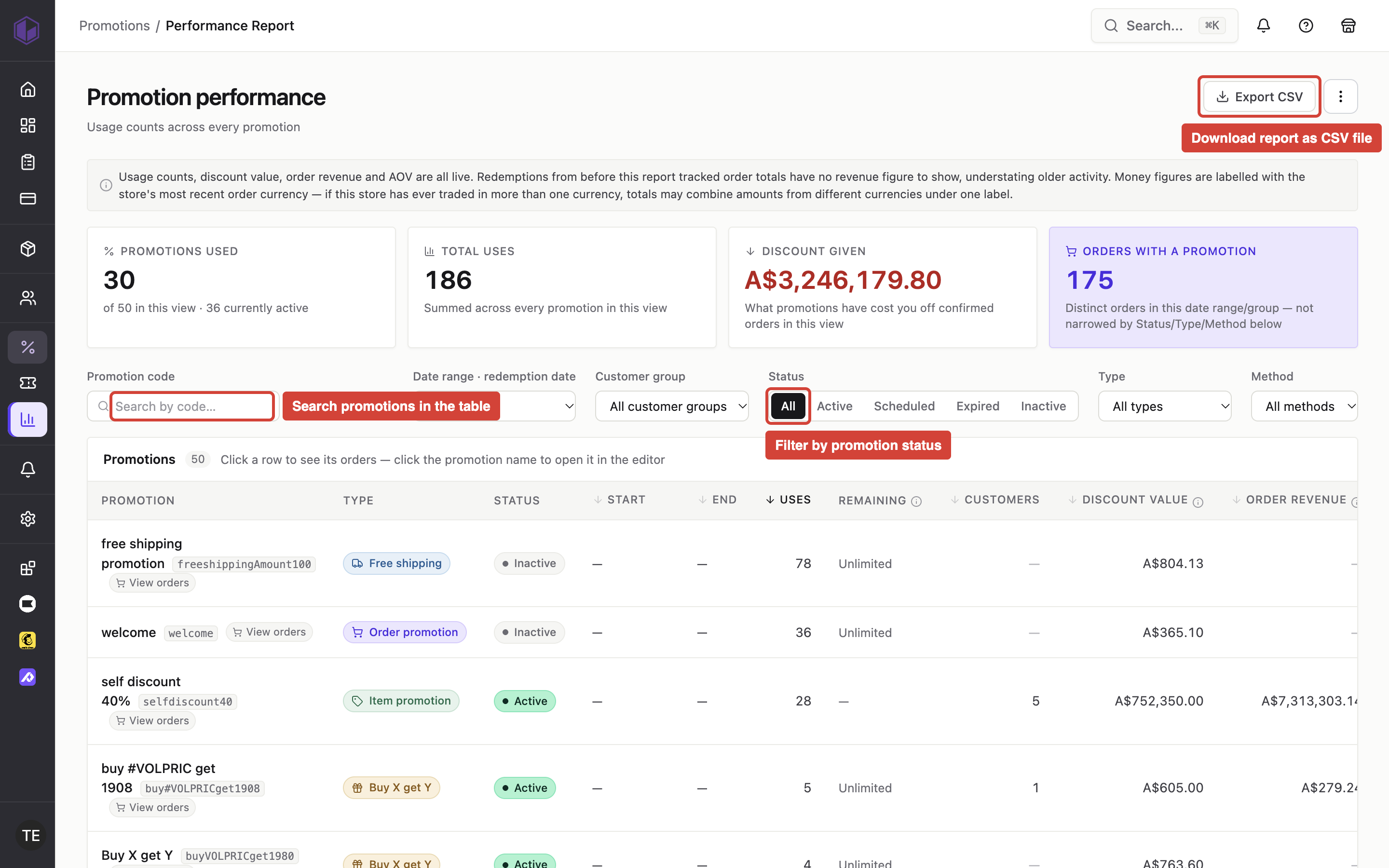
Where to find it: Admin → Promotions → Performance report button, or Admin → Settings → Promotions → Performance report in the navigation
When you'd use this: You want to see which promotions customers are actually using, what each promotion has cost your store in discounts, and whether a promotion is worth continuing. You need to evaluate the performance of a seasonal campaign, compare discount strategies, or decide which promotions to renew.
What you need first:
- Admin access to Promotions
- One or more promotions configured on your store
Using it day-to-day:
- The performance report shows a summary of all promotion usage across your store, followed by per-promotion breakdowns
- Filter the promotion list by status (All, Active, Inactive) or promotion type (All, Order Promotion, Item Promotion, Buy X Get Y, Free Shipping) using the dropdown controls at the top of the table
- Sort the table by clicking column headers — click once for ascending, again for descending
- Revenue figures shown per promotion are attributed, not incremental — if an order used two promotions, its revenue appears in both rows, so the per-promotion totals may add up to more than the actual store revenue
- A separate deduplicated revenue figure appears in the summary section at the top of the report to show your store's actual order revenue without double-counting
- Never-used promotions appear in the table tagged "Never used" — a promotion with zero usage is itself a finding worth reviewing
- When filtering to a specific status or promotion type, the table shows only matching promotions, even if some have never been used
- Click any promotion row to see the specific orders the promotion was applied to, with per-order discount amounts, order totals, and dates
- When an order used multiple promotions together, the drill-down view shows how many other promotions were also applied to that same order
- Export the full report as a CSV file using the download button — the CSV includes all columns and rows visible in the current filtered view
Troubleshooting:
- Filtering hides a promotion I know exists — Check that the promotion matches both the status filter and the type filter you've selected. Click "Clear filters" to return to the full unfiltered view.
- Revenue totals don't match expected numbers — Per-promotion revenue is attributed rather than incremental, meaning orders that used multiple promotions are counted in each promotion's row. The deduplicated figure in the summary section shows your store's actual revenue.
- An order appears in multiple promotion drill-downs — This is expected when a customer combined multiple promotions in a single order. Each promotion's drill-down shows the orders it touched, so the same order can appear in more than one list.
Configuration options
Common fields (all promotion types)
| Field | What it does | Allowed values | Required |
|---|---|---|---|
| Promotion Type | Determines the discount mechanism | Order Promotion, Item Promotion, Buy X Get Y, Free Shipping | Yes |
| Method | How customers access the promotion | Promo Code, Auto Promo | Yes |
| Code | The promo code (customer-entered for Promo Code; internal identifier for Auto Promo) | Any unique string | Yes |
| Description | Internal label for the promotion | Any text | Yes |
| Start Date/Time | When the promotion becomes active | Any future or current date/time | Yes |
| End Date/Time | When the promotion expires | Any date/time after start | Yes |
| Active | Whether the promotion is enabled | True or false | Yes |
Discount value fields (Order Promotion, Item Promotion, Buy X Get Y)
| Field | What it does | Allowed values | Required |
|---|---|---|---|
| Value Type | How the discount is calculated | Percentage, Fixed Amount | Yes |
| Value | The discount amount or percentage | Positive number | Yes |
Minimum purchase
| Field | What it does | Allowed values | Required |
|---|---|---|---|
| Minimum Purchase Type | Condition that must be met | Nothing, Purchase Amount, Quantity Of Item | Yes |
| Minimum Amount | Minimum order subtotal | Positive number | Required if type is Purchase Amount |
| Minimum Quantity | Minimum item quantity | Positive integer | Required if type is Quantity Of Item |
Item eligibility (Item Promotion only)
| Field | What it does | Allowed values | Required |
|---|---|---|---|
| Item Eligibility Type | How eligible items are defined | Item List, Item Category | Yes |
| Items | Specific product codes | List of product codes | Required if type is Item List |
| Categories | Product category IDs | List of category IDs | Required if type is Item Category |
Customer eligibility
| Field | What it does | Allowed values | Required |
|---|---|---|---|
| Customer Eligibility Type | Who can use the promotion | Nothing, Customer Code, Customer Group, User Group | Yes |
| Customer Codes | Specific customer account codes | List of customer codes | Required if type is Customer Code |
| Customer Groups | Customer group IDs | List of group IDs | Required if type is Customer Group |
| User Groups | User group IDs | List of group IDs | Required if type is User Group |
Maximum discount use
| Field | What it does | Allowed values | Required |
|---|---|---|---|
| Maximum Discount Use Type | Usage limit mechanism | Unlimited, One Per User, X Amount Of Time | Yes |
| Maximum Use Count | Total number of times the promotion can be used | Positive integer | Required if type is X Amount Of Time |
Combination rules
| Field | What it does | Allowed values | Required |
|---|---|---|---|
| Combinable With | Which other promotion types can be used with this one | Order Promotion, Item Promotion, Buy X Get Y, Free Shipping (Free Shipping promotions cannot select Free Shipping) | No |
Using it day-to-day
For customers
- Auto Promo promotions apply automatically at checkout when all conditions are met — the customer sees the discount without needing to do anything
- Promo Code promotions require the customer to enter the code in the promo code field during checkout
- When multiple promotions are available, the system automatically applies the combination that provides the best discount
- If two promotions offer exactly the same discount value, manually entered promo codes take priority over automatic promotions
- The discount appears as a line item on the order, showing which promotion was applied and the discount amount
- Once a promotion is applied to a customer's cart, the discount amount remains stable for the life of that cart — even if an admin edits the promotion's discount value while the customer is shopping
For admins
- The Promotions list in the admin shows all promotions with their ID, description, code (if applicable), active status, promotion type, method, schedule status (Running, Scheduled, or Ended), date range, and usage count
- Filter promotions using the All, Active, and Inactive tabs to see promotions by status
- Each promotion type is marked with a color-coded label: Order Promotion (violet), Item Promotion (green), Buy X Get Y (amber), and Free Shipping (blue)
- The schedule column shows whether a promotion is currently running, scheduled for the future, or has ended, along with the date range
- The usage count shows how many times the promotion has been applied (for One Per User promotions, this tracks unique customers; for X Amount Of Time promotions, this tracks total uses)
- Click any promotion to open the editor and view its full details, including all configured rules and historical usage
- Edit any field on a promotion at any time — changes apply immediately to new redemptions
- A floating save bar appears when you make changes, allowing you to save or discard your ed
Map promotion discounts to Sage 300 ERP items
Where to find it: Promotions settings in the Admin
When you'd use this: You're using Sage 300 as your ERP and need promotion discounts to appear as line items on orders synced to Sage 300.
What you need first:
- A store integrated with Sage 300
- Promotions enabled on your store
- Either Miscellaneous Items or Non-Stock Items configured in your Sage 300 system
- Admin access to Promotions settings
Set it up:
- Navigate to the Promotions settings
- Locate the promotion mapping configuration card
- In the Item Type dropdown, select either:
- Miscellaneous Item — for misc charges in Sage 300
- Non-Stock Item — for non-inventory items in Sage 300
- Once you've selected an Item Type, the ERP item dropdown becomes available
- Select the specific item from Sage 300 that should represent all promotion discounts
- Save your configuration
Using it day-to-day:
Once configured, promotion discounts automatically appear as line items when orders sync to Sage 300. The discount line uses the ERP item you mapped, with the discount amount shown as the extended amount on that line. This single mapping applies to all promotions on your store — you don't need to map each promotion individually.
Troubleshooting:
- ERP item dropdown is disabled — Select an Item Type first. The ERP item dropdown only activates after you choose Miscellaneous Item or Non-Stock Item.
- Discounts not appearing in Sage 300 orders — Verify that you've completed the mapping configuration and that the selected ERP item still exists in your Sage 300 system.