Order Promotions
An Order Promotion applies a discount to the entire order when qualifying conditions are met. Use this promotion type when you want to reward customers based on their total purchase amount or grant discounts to specific customer segments, such as wholesale buyers or loyalty program members.
How to set it up
Where to find it: Admin → Promotions → New Promotion → Select "Order Promotion"
When you'd use this: You want to offer a percentage or fixed-amount discount on the entire order when the customer meets minimum purchase requirements or belongs to specific customer groups.
What you need first:
- The discount amount (percentage or fixed dollar value)
- Minimum purchase requirements (if any)
- Customer eligibility rules (customer codes, customer groups, or user groups if restricting access)
- Promotion start and end dates
- A promo code (if using Promo Code method) or understanding that it will apply automatically (if using Auto Promo method)
Set it up:
- Navigate to Admin → Promotions and click New Promotion.
- Set Promotion Type to "Order Promotion".
- Enter a Description to identify this promotion internally.
- Choose the Method:
- Promo Code: Customer must enter a code at checkout.
- Auto Promo: Discount applies automatically when conditions are met.
- If using Promo Code method, enter the Code customers will use.
- Set Start Date/Time and End Date/Time for when the promotion is valid.
- Configure the Value:
- Select Type: "Percentage" or "Fixed Amount".
- Enter the Amount (e.g., 10 for 10% off, or 25.00 for $25 off).
- Configure Minimum Purchase:
- Select Type: "Nothing", "Purchase Amount", or "Quantity Of Item".
- If "Purchase Amount" or "Quantity Of Item", enter the Amount required.
- Configure Customer Eligibility:
- Select Type: "Nothing", "Customer Code", "Customer Group", or "User Group".
- If not "Nothing", provide the list of codes or groups in Value.
- Configure Maximum Discount Use:
- Select Type: "Unlimited", "One Per User", or "X Amount Of Time".
- If "X Amount Of Time", specify the number of times the promotion can be used.
- Set Active to true to enable the promotion.
- Click Save.
Configuration options
| Field | What it does | Allowed values | Required |
|---|---|---|---|
| Description | Internal name for the promotion; cannot be changed after creation | Any text | Yes |
| Method | How the promotion is applied; cannot be changed after creation | Promo Code, Auto Promo | Yes |
| Code | The code customers enter (if Method is Promo Code); cannot be changed after creation | Any alphanumeric string | Yes (if Promo Code) |
| Start Date/Time | When the promotion becomes active | Any future or current date/time | Yes |
| End Date/Time | When the promotion expires | Any date/time after start | Yes |
| Active | Whether the promotion is currently enabled | true, false | Yes |
| Value → Type | How the discount is calculated; cannot be changed after creation | Percentage, Fixed Amount | Yes |
| Value → Amount | The discount value (e.g., 10 for 10%, or 25.00 for $25 off); cannot be changed after creation | Any number ≥ 0 | Yes |
| Minimum Purchase → Type | Condition that must be met before discount applies; cannot be changed after creation | Nothing, Purchase Amount, Quantity Of Item | Yes |
| Minimum Purchase → Amount | The threshold amount or quantity; cannot be changed after creation | Any number ≥ 0 | Yes (if not Nothing) |
| Customer Eligibility → Type | Who can use this promotion; cannot be changed after creation | Nothing, Customer Code, Customer Group, User Group | Yes |
| Customer Eligibility → Value | List of customer codes or group identifiers; cannot be changed after creation | List of strings | Yes (if not Nothing) |
| Maximum Discount Use → Type | How many times the promotion can be used; cannot be changed after creation | Unlimited, One Per User, X Amount Of Time | Yes |
| Maximum Discount Use → Amount | Number of total uses allowed; cannot be changed after creation | Any number ≥ 1 | Yes (if X Amount Of Time) |
Using it day-to-day
- Customer applies the promotion: If the method is Promo Code, the customer enters the code at checkout. If Auto Promo, the discount appears automatically when conditions are met.
- System validates eligibility: The promotion engine checks that the current date/time falls within the start and end range, the customer meets eligibility requirements, minimum purchase conditions are satisfied, and usage limits have not been exceeded.
- Discount is applied: If all conditions pass, the discount appears as a line item in the order, reducing the order subtotal or grand total.
- Order is recorded: The promotion details are stored with the order, including which promotion was applied and the discount amount.
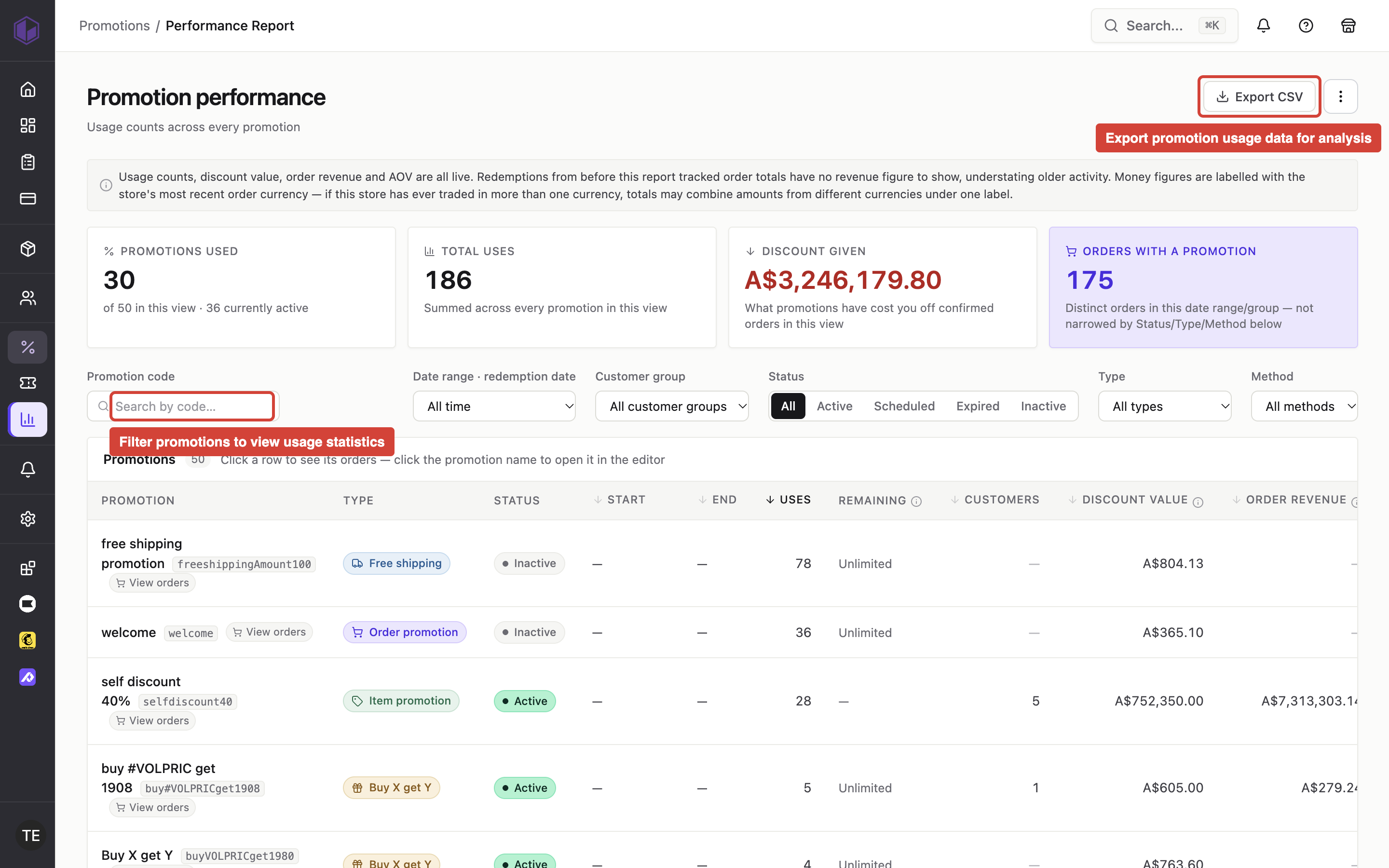
- Admin monitors usage: Admins can view how many times a promotion has been used and which orders included the discount.
- Promotion expires or is deactivated: After the end date/time or if Active is set to false, the promotion no longer applies to new orders.
Troubleshooting
- "Promotion not found" or discount doesn't appear: Verify the promotion is Active, the current date/time is between Start Date/Time and End Date/Time, and (if using Promo Code) the code was entered correctly.
- "Minimum purchase requirement not met": The order total or item quantity does not satisfy the Minimum Purchase condition. Check that the Amount is set correctly and that the order qualifies.
- "Customer not eligible": The customer's account does not match the Customer Eligibility criteria. Confirm the customer code, customer group, or user group is included in the Value list.
- "Promotion usage limit reached": If Maximum Discount Use is set to "One Per User", the customer has already used this promotion. If "X Amount Of Time", the total usage count has been exhausted.
- Cannot update Description, Method, Code, or Criteria after creation: These fields are immutable once the promotion is saved. Create a new promotion if changes are needed.
- Discount amount is incorrect: If Value Type is "Percentage", ensure the Amount is the percentage value (e.g., 15 for 15%), not a decimal. If "Fixed Amount", ensure the Amount matches your intended currency value.
- Auto Promo applies unexpectedly: Check that Minimum Purchase and Customer Eligibility are configured as intended. If set to "Nothing", the promotion applies to all qualifying orders automatically.